Not everything has an hour yet.
Some things you mean to do have no hour yet, and inventing one for them is how a plan starts lying to you. The Inbox is a tray of blocks with no time on them, still the right length, still the right colour, waiting for room. It was called the Backlog until August 2026; same tray, plainer name.
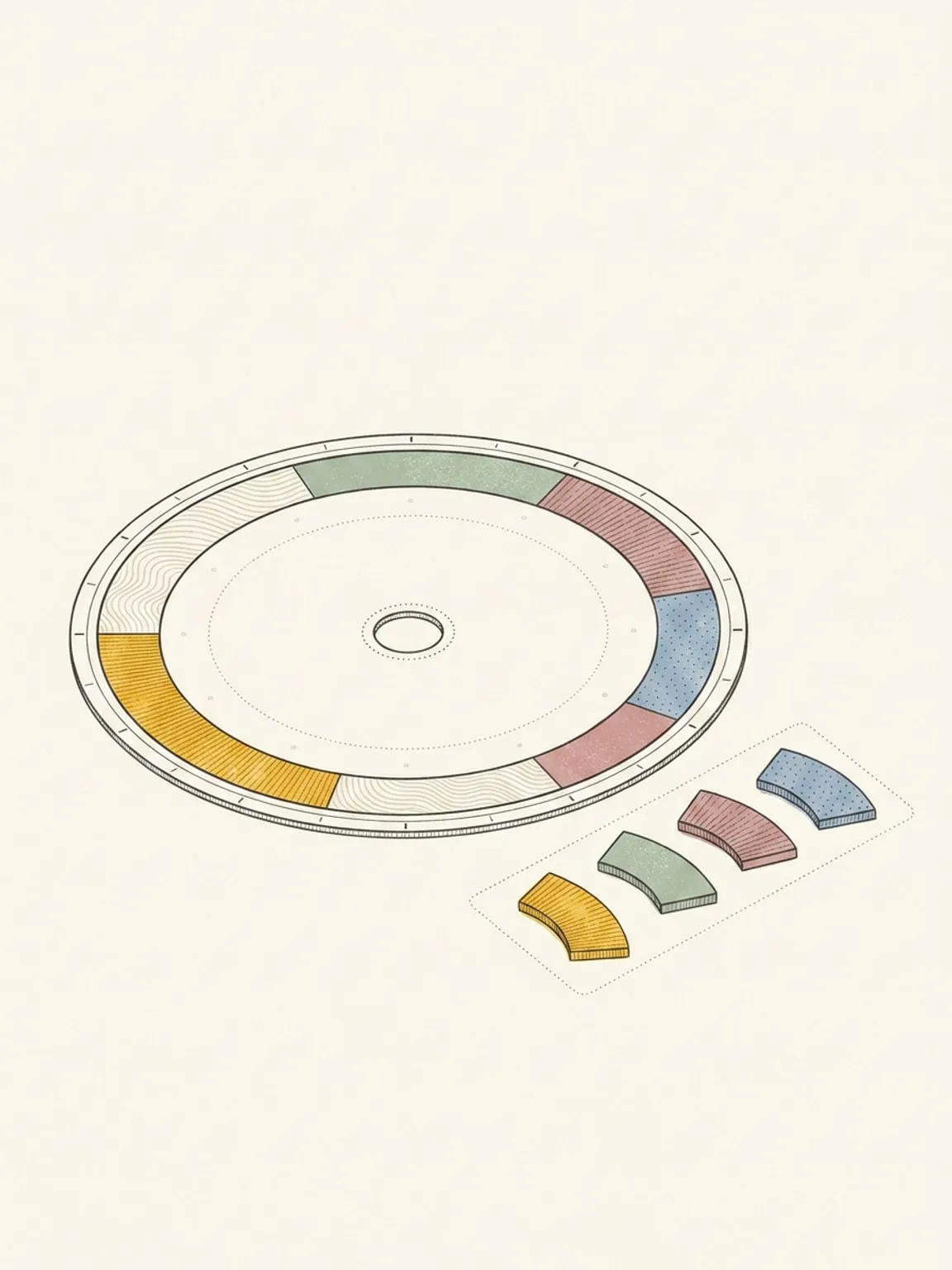
Add it to your Inbox, then drop it back on
Send a block to the tray and it drops its time and waits. Drag it onto the dial when there is room and it becomes a real, scheduled block again, at the size it always had.
Somewhere for the things you did not get to
A block you mark Didn’t happen in your reflection can drop into your Inbox instead of vanishing, and so can the microtasks you did not finish.
Sorted for you, filtered by you
A block you add gets sorted into the right area automatically. Filter the tray by area or type when it gets long, collapse the sections you are not working from, and give an Inbox block microtasks to break it down before it has a time.
Overdue, without the red
Inbox blocks past their planned day group under “Overdue”. That is the entire treatment. Nothing counts up, nothing turns red, nothing resets, and a full tray is not a scolding.
This page is the what and the why. For the step by step, the docs cover the same ground as instructions: Inbox in the docs →
Questions
- Is this a to-do list?
- It is a tray of blocks, not tasks. Each one already knows how long it takes and which area of life it belongs to, which is what makes it draggable straight back onto a real day.
- Do undated Todoist tasks land here?
- Yes, if you want them to. Choose per project whether undated tasks come across; a task with a due time becomes a block on the dial instead.
- What happens to my Inbox if I drop to Free?
- Nothing is hidden from you. The tray still opens on Free to read and delete what is in it. Adding a block and scheduling one back onto the dial are the Pro parts.