Reassign vs Google Calendar: do you need a day planner on top of your calendar?
Google Calendar for daily planning: where it is enough, where the hours between meetings vanish, and when a 24-hour day planner on top of it earns its place.

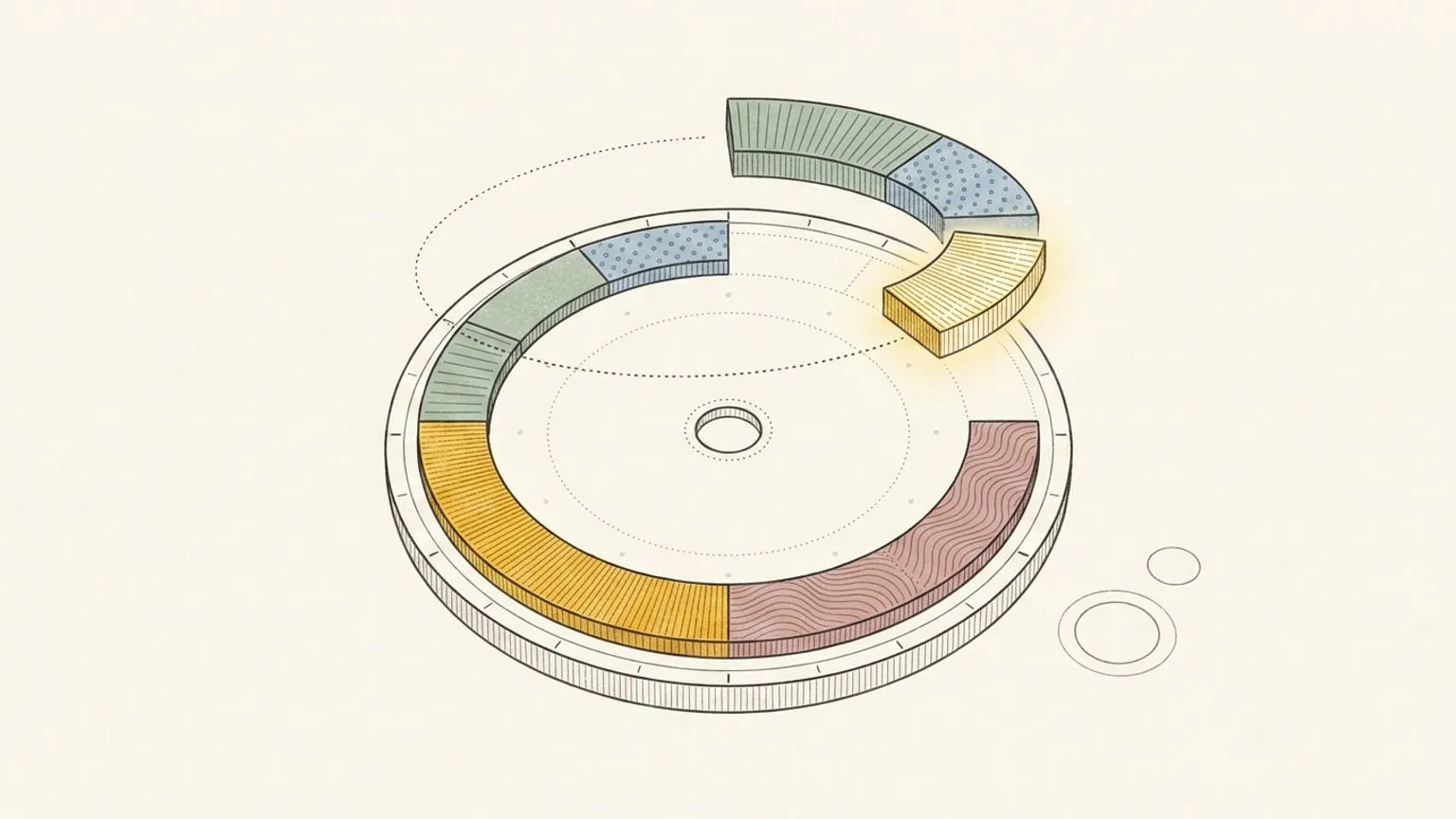
First, the bias. Reassign is mine. It is a 24-hour circular day planner, and this is the one comparison on the site where I am not asking you to leave anything. Reassign syncs two-way with Google Calendar, and the sync exists because Google Calendar is where your meetings live and should keep living. So the question on this page is narrower than “which one”. It is whether you also want a surface for planning the day, on top of the calendar that records it. Or a surface just to see it: you can connect the calendar and only look, and never write a thing back.
Everything below about Google Calendar comes from Google’s own help centre, Workspace pages and developer docs, checked on 19 August 2026. Where a claim carries weight I quote the sentence. Where I could not find something on a Google page, I say so.
The short answer: for a lot of people Google Calendar is enough, and the honest default is to keep it as your only tool. You want the second surface in one case, and it is a specific one.
The only question that matters
Do your meetings already describe your day, or do the hours between them keep vanishing?
If your calendar is full of events other people put there, and the day is mostly moving from one to the next, then Google Calendar is already a day planner. It shows the commitments, it shows the gaps, and the gaps are yours to spend. Stop reading, and keep the calendar.
If the meetings are the small part, and the real work happens in the hours nobody invited you to, then the calendar shows you a day with holes in it. The two hours before standup. The afternoon after the last call. The evening. Those are the hours that do the work and the ones that vanish first, and they vanish because a calendar has no object for them. An empty stretch of a column is an absence, not a shape. You have to subtract the end of one event from the start of the next, estimate what fits, and hold that in your head, which is the exact thing that time blindness does not let you hold.
The calendar is not doing anything wrong. It was built for events at times. It was not built to show you the shape of a day.
What Google Calendar gives you
Checked 19 August 2026 against Google’s own pages. I list the things that matter for planning a day, not every feature.
Views. On the computer, Google’s help page says: “In the top right, choose a view: Day, Week, Month, Year, Schedule, or 4 days.” You can also set a custom view and choose the day your week starts. Every one of those is a grid or a list that you scroll. Day view is a single column of hours; Schedule is a list of upcoming events.
Tasks. Google Tasks are built in. “Tasks with a date also appear on your calendar”, and “To appear on your calendar, tasks must have a date.” A time is optional. You can mark a task complete from inside Calendar.
Gmail and Meet. The Workspace product page for Calendar says: “Flights, hotels, and restaurant reservations in your inbox are automatically added to Calendar”, and you can “Easily add Google Meet video conferencing to an event to connect virtually.”
Focus time and working hours. Both are Workspace features, not personal-account features. The focus time help page reads: “To schedule a focus time event, you must have a work or school account”, and lists Google Workspace Business Standard and Plus, Enterprise Standard and Plus, Education and Nonprofits. “You can only create focus time events from Day and Week views”, and by default focus time declines new and existing meetings. Working hours: “You can use working hours and availability if your account is through your work or school organization.”
Time Insights. Also Workspace: “If you use Google Calendar on a work or school account, you can use ‘Time Insights’ to find out how you spend your time in meetings.” “You can only view Time Insights on a computer.” The panels are Time breakdown, Time in meetings, and People you meet with, and the meeting count includes events you accepted with at least one other guest, marked Busy, under 8 hours. It is an analysis of meetings, not of the day.
Appointment schedules. “With appointment schedules, you can manage your availability and let people book time with you directly in Google Calendar.” The setup page lists “A personal Google Account or Workspace account” as what you need, and adds that “Some appointment schedule features require an eligible Google Workspace or Google One subscription”. The overview names them: “With a paid subscription, you can unlock a professional booking page, email reminders, paid appointment bookings, and more.”
Gemini. Two separate things. Inside Calendar, Gemini finds meeting times: it will “search for everyone’s availability and suggest times to meet that work best for everyone”, and “This feature requires an eligible Google Workspace plan.” It does not work from the mobile apps. Separately, the Gemini app can “create, find, and edit your events in Google Calendar”, including rescheduling and cancelling, but per Google it cannot “Add or invite people to events” or change the location or description of an existing event.
An MCP server, in developer preview. Google documents a remote Google Calendar MCP server at https://calendarmcp.googleapis.com/mcp/v1, “Available as part of the Google Workspace Developer Preview Program”. It “uses OAuth 2.0 for authentication and authorization”. The tools are create_event, delete_event, get_event, list_calendars, list_events, respond_to_event, suggest_time and update_event. Listed clients are Google Antigravity, Claude on paid plans, and other MCP clients. The page carried a “Last updated 2026-07-27” line when I read it. Note the shape of it: every tool is about an event or a calendar.
Mobile widgets. On Android, Google lists two: “Calendar schedule: View your tasks and upcoming events” and “Calendar month view: Show your schedule one month at a time.” iPhone and iPad get a Calendar widget on iOS 14 and up.
Price. Google Calendar comes with a Google Account at no charge. The Workspace features above are priced per user on workspace.google.com/pricing, and the numbers vary by region and currency, so read yours there.
Nothing on this page beats Google at any of it.
What Google Calendar sync does, and does not
Before the differences, the plumbing, because it changes what “on top of” means.
Connect a Google account to Reassign (Pro) and every calendar under it becomes a source on the dial, each with its own colour, each one you can show or hide. Events arrive as real, editable blocks, not a read-only layer, and Reassign’s AI sorts each one into your areas (or you pin one area per calendar) so a synced day reads like a day you drew. Move, resize or edit a block you own and the change is written back to the Google event. Change it in Google and the dial has it. There is a manual Sync now, and each calendar shows when it last synced. A recurring series stays one series.
What it leaves alone:
- A calendar you do not own comes in read-only, so you cannot rewrite someone else’s calendar by accident.
- Events you have declined are never synced.
- All-day events sit as an always-visible card, never a block that eats your hours.
- Google Tasks syncs separately. Dated tasks arrive in the Inbox; drag one into an open hour without moving its deadline. Titles, notes, due dates and completion sync both ways. Due times do not pass through the Google Tasks API, so your planned hours stay in Reassign. Todoist, Microsoft To Do, Linear and TickTick also connect.
- Disconnect and your Google calendars clear from the dial. Nothing changes in Google.
The longer write-up is the Google Calendar sync post, and the short version is the Google Calendar sync feature page. The point for this comparison: events live in Google. You are choosing where you look at the day and where you draw the rest of it.
Reassign vs Google Calendar: four real differences
1. The shape of the day
A calendar draws a day as a column. You scroll it, and whatever is off-screen stops existing. Day view is a column of hours that you scroll, so the early morning and the late evening sit above or below the part you are looking at. That is fine for meetings, because a meeting is an event at a time and you only need to see the next one.
Reassign draws all 24 hours as one ring. Midnight at the top, noon at the bottom, every block a wedge sized to its real length, a now indicator sweeping round it. Nothing scrolls. The free stretch before dinner is a visible arc you can point at. The afternoon you already spent is a shape. This is the whole argument, and it is why a day is round: a closed ring has no off-screen, so the evening cannot quietly disappear while you are inside the morning.
The honest cost: a ring shows the whole day at lower detail than a column shows a slice of it. If you live in back-to-back meetings with long titles and guest lists, the column reads better.
2. The hours nobody invited you to
Google Calendar is very good at telling you what you agreed to. The non-meeting hours are the gaps, and a gap carries no information: not what it is for, not what kind of energy it takes, not whether it is work or life.
On the dial the non-meeting hours are blocks like any other. Drag from 7:30 to 9 and it is a block. Colour says which area of life it belongs to (Work, Relationships, Self, Life, or your own). A fill pattern says what kind of activity it is: Recharge, Flow, Grind, Drain. Sleep and a fast sit on the inner ring as non-blocking events that can overlap anything. So the day you see is the day, not the meetings plus white space. Your Google events sit on the same ring, in their calendar’s colour, as part of that picture instead of as the picture.
Reassign works without Google connected. The sync is for people whose meetings are a big enough part of the day that retyping them would kill the habit.
3. What happens when the day moves
In Google Calendar you reschedule an event by dragging it, one event at a time. When the noon call runs over, the afternoon is a drag per event, and the gaps between them are yours to recompute.
On the dial, press S and shift a block with everything after it, in one move. Undo covers the mistake. On Pro, Ask AI in the command palette takes “push everything after lunch back an hour” and returns an editable plan you preview on the dial before it applies. Or say it to the dial: tap the voice icon on it, or press ⌃M. A safe change like that one applies at once with one Undo, and a delete, a clear, or a question back to you opens in the palette for review. And because Reassign is also an MCP server (Pro), Claude or ChatGPT can make the same move from a chat, with a 30-minute undo.
Here the comparison with Google’s own MCP server is instructive rather than competitive. Google’s tools are over events and calendars: list, create, update, delete, respond, suggest a time. Reassign’s 9 planning tools are over the day: read the schedule, the energy curve, the weather and the reflection; write and move blocks; manage the Inbox. For a new block, the assistant reads freeSlots from get_schedule, chooses a time, and calls write_events. The write applies immediately by default with an undo token. Both servers are real, and they answer different questions. The public REST API at reassign.app/api/v1 (Pro) is the same operations over plain HTTP, for the things you script rather than say. If you want an agent to manage invitations, Google’s server is the one. If you want it to rebuild a broken afternoon, the events are the easy part. The list of day planners with an MCP server puts Reassign’s server beside the other first-party ones.
4. What the day gives back
Time Insights tells you how much of your week was meetings, and who you met. That is useful, and it is about meetings.
Reassign’s energy curve (Pro) draws a per-hour line around the dial from your logged sleep, so you can place the hard block where you will actually be sharp rather than wherever the gap fell. It is a model, not a measurement, and the case for energy-based planning explains what it can and cannot tell you. At the end of the day you mark each block as happened, changed, or did not, and read the day you planned against the day you lived. You can also tell Ask AI how the day went: it records the marks and a day note, and it never changes the plan. Reflection on yesterday and earlier days is included in Pro. And the things that had no time today go to the Inbox (Pro) rather than to a task you will date later, so tomorrow’s dial starts with them waiting instead of forgotten.
None of that exists in a calendar, because none of it is about events. It is about the day.
Where Google Calendar is straightforwardly better
Not a rhetorical section. These are real, and most of them are structural.
- It is free, and it is everywhere. A Google Account gets you Calendar on the web, Android and iOS, with widgets. Reassign is a web app you can install and sync across devices, with internet required to save changes, plus a Chrome extension. Its block and break alerts reach every device where you turn them on. There is no App Store build and no home-screen widget: an iPhone companion app is in progress, and widgets are Soon.
- Shared calendars and invitations. This is the job. Other people’s calendars, invitations, RSVPs, guest lists, Meet links. Reassign is not where you invite anyone, and a calendar you do not own arrives read-only on the dial for exactly that reason.
- Appointment scheduling. A booking page from inside the calendar, on personal accounts, with the professional version on a subscription. Reassign has nothing like it.
- Tasks and Gmail. Google Tasks on the calendar, reservations and flights added from your inbox, Meet in a click. Reassign syncs Todoist, Google Tasks, Microsoft To Do, Linear and TickTick, and nothing reads your email.
- Workspace features for teams. Focus time that declines meetings, working hours and location, Time Insights, Gemini finding a time that works for everyone. Reassign has no team features at all; it is a personal planner.
- It is the record everyone else reads. When your colleague, your partner or your dentist looks at when you are free, they are looking at Google Calendar. That is the reason Reassign writes back to it instead of replacing it.
If your day is those things, you do not need a second surface, and the right answer is to close this tab.
Where Reassign adds something
Pro items are marked.
- The whole day at once. All 24 hours on one ring, with a now indicator, and no scrolling. Included in Pro.
- Blocks for the non-meeting hours. Work, life and sleep as blocks, colour for area, pattern for activity type, non-blocking events on the inner ring. Included in Pro.
- Reschedule the rest of the day in one move. Shift a block with everything after it, undo. Included in Pro. Ask AI for compound moves in plain words, typed or spoken, Pro.
- Your Google events on the dial as editable blocks, two-way. Pro.
- An energy curve to place hard work where you will be sharp. Pro.
- Reflection, planned against lived. Included in Pro for yesterday and earlier days.
- An Inbox for blocks with no time yet. Pro.
- MCP and a REST API over the day, not only the events. Pro.
- The dial on every new tab. The Chrome extension frames today’s live dial in every new tab. Installation is free; opening your plan and saving pages require an account with trial or paid access.
All these planner features are included in Pro and the 7-day no-card trial. Google Calendar remains the option here for ongoing free access.
On price
Google Calendar costs nothing with a personal Google Account. The Workspace features named above come with a Workspace edition, priced per user, and the price depends on your region and currency; read it on Google’s pricing page rather than here.
Reassign has one Pro plan at $14/month or $120/year ($10/month billed yearly), with a 7-day no-card trial. After the trial, a subscription is required to use the planner; your data stays. See plans and transition terms.
A planner on top of Google Calendar is an additional subscription: $14/month or $120/year. Use the 7-day no-card trial to decide whether the dial earns that cost, or try the free printable first.
If what you wanted on top of Google Calendar was an autopilot
Different question, same calendar. Reclaim and Motion also connect to Google Calendar, and their idea is that the tool places the work for you and moves it when the day changes. Reassign does not do that; you draw the day and the dial shows you its shape. If an autopilot is what you were after, the Reclaim comparison and the Motion comparison are the pages to read. And if your work calendar is Outlook rather than Google, the Outlook page takes the same stance, with Microsoft’s own feature gates in place of Google’s.
How to decide in one evening
Do not read more comparisons. Do this.
Open Google Calendar on tomorrow and look at the day. Then print the free paper dial, no account needed, and draw tomorrow on it: the meetings, and then the hours between them, including the boring ones and the sleep. It takes ten minutes.
Now look at both at 3pm tomorrow, when something has already gone wrong. If the calendar showed you a day you recognised, keep the calendar and nothing else. If the ring showed you a day and the calendar showed you meetings, you have your answer, and connecting Google to the dial is a Pro trial away.
Either way, Google Calendar stays. It was never the thing to replace.
Frequently asked
- Is Google Calendar good enough for daily planning?
- For a lot of people, yes, and you should not pay for anything else until you know you are not one of them. Google Calendar is free with a Google Account, it is where your meetings and invitations already live, and it has Tasks, Gmail and Meet built in. It becomes a weak daily planner in one specific case: when the hours between your meetings are the real work and they keep vanishing. A calendar draws a day as a scrolling column, so the gaps are absences rather than shapes. If that is your failure mode, a day planner on top of the calendar earns its place; if your meetings already describe your day, it does not.
- Is Reassign a Google Calendar alternative?
- No. Reassign is a 24-hour circular day planner that syncs two-way with Google Calendar on Pro. Google stays the system of record: it is where people invite you, where shared calendars live, and where appointment booking happens. Reassign reads those events onto one 24-hour dial as editable blocks, writes your edits back, and adds the part a calendar does not hold: the non-meeting hours, drawn as blocks you can move, colour by area of life and pattern by activity type. Nothing migrates, and disconnecting changes nothing in Google.
- What is the difference between a day planner and a calendar?
- A calendar stores events at times and shows them as a grid you scroll; it is built for commitments, especially commitments with other people, and it is the record everyone else reads. A day planner is about the one day in front of you: all of it, including the hours nobody invited you to. In Reassign that means all 24 hours on one ring with a now indicator, blocks for work, life and sleep, a way to shift the rest of the day in one move, and a reflection at the end of it. You can plan a day inside a calendar, and many people do. The planner is for when the calendar keeps showing you the meetings and losing the day.
- Does Reassign sync with Google Calendar?
- Yes, two-way, on Pro. Connect a Google account and every calendar under it lands on the dial as its own source, in its own colour, with the events as editable blocks. Move, resize or edit a block you own and Google has the change; change it in Google and the dial has it. Calendars you do not own come in read-only, declined events are never synced, and all-day events sit as an always-visible card above the day, never a block that eats your hours. Google Tasks syncs two-way through its own connection; on the task side Reassign also syncs Todoist, Microsoft To Do, Linear and TickTick.
- Is Google Calendar good for ADHD?
- It depends which part of ADHD planning breaks for you. If the problem is remembering commitments and getting invited to the right things, Google Calendar is fine and it is everywhere. If the problem is time blindness, where six o'clock arrives as a surprise because the day was a column you scrolled, the calendar is the wrong shape and a longer list of reminders will not fix it. A 24-hour dial shows the whole day as one object, which is the thing a scrolling grid cannot do. The dial in Reassign is included in Pro and the 7-day no-card trial, with or without Google connected.
- Does Google Calendar have an MCP server?
- Yes, in developer preview. As of 19 August 2026 Google documents a remote Google Calendar MCP server at calendarmcp.googleapis.com with OAuth 2.0, available through the Google Workspace Developer Preview Program. Its tools cover calendars and events: list_calendars, list_events, get_event, create_event, update_event, delete_event, respond_to_event and suggest_time. Reassign's MCP server, on Pro, is over the day rather than the events: it reads the schedule, energy curve, weather and reflection, moves blocks, and manages the Inbox, with a 30-minute undo.