Reassign vs Microsoft To Do: give My Day working hours
Compare Microsoft To Do's My Day with a 24-hour circular day planner. See what Reassign adds, what syncs, and how to plan tasks around Outlook meetings.

My Day helps you choose today’s tasks. Reassign helps you give them time around your meetings. If To Do and Outlook already make that easy, keep your setup. I build Reassign; here is when adding the dial is worth trying.
Microsoft To Do and Reassign at a glance
Microsoft’s linked sources were checked on 28 September 2026. You can use both apps together and keep your existing lists.
| What you need | Microsoft To Do | Reassign |
|---|---|---|
| Choose today’s tasks | My Day, with suggestions and a nightly reset | Inbox blocks you place on today’s dial |
| Reserve working time | Drag a task to Outlook Calendar to create an event | Drag a task onto a 24-hour dial |
| Keep task detail | Steps, notes, files and shared lists | Microtasks and notes inside a block |
| See meetings beside tasks | The My Day pane and Outlook Calendar | Connect Outlook Calendar separately |
| Sync between the two | Keep capturing in your To Do lists | Titles, notes, due dates and completion flow both ways |
| Cost | Free with a personal account; supported work licence required at work | $14/month or $120/year after a 7-day no-card trial |
When My Day and Outlook are enough
If three tasks and a few meetings make a manageable day, My Day is a useful morning routine. Pick the tasks, work through them, and start fresh the next morning. Microsoft’s My Day guide explains that the list resets overnight. Unfinished tasks remain in To Do and return in suggestions.
For working hours, Outlook already has an answer. Open Calendar, show the My Day pane, select the To Do tab, and drag a task onto the calendar. Outlook creates an event for that work.
To Do also keeps the detail close: steps, notes and file attachments, plus smart lists such as Planned and Flagged Email. Microsoft’s task-management guide covers those controls. If you rely on them, keep To Do as the place you organise tasks.
What Reassign adds to My Day
Suppose My Day has six tasks and Outlook has four meetings. Choosing those tasks was the first decision. Finding hours for them is the next.
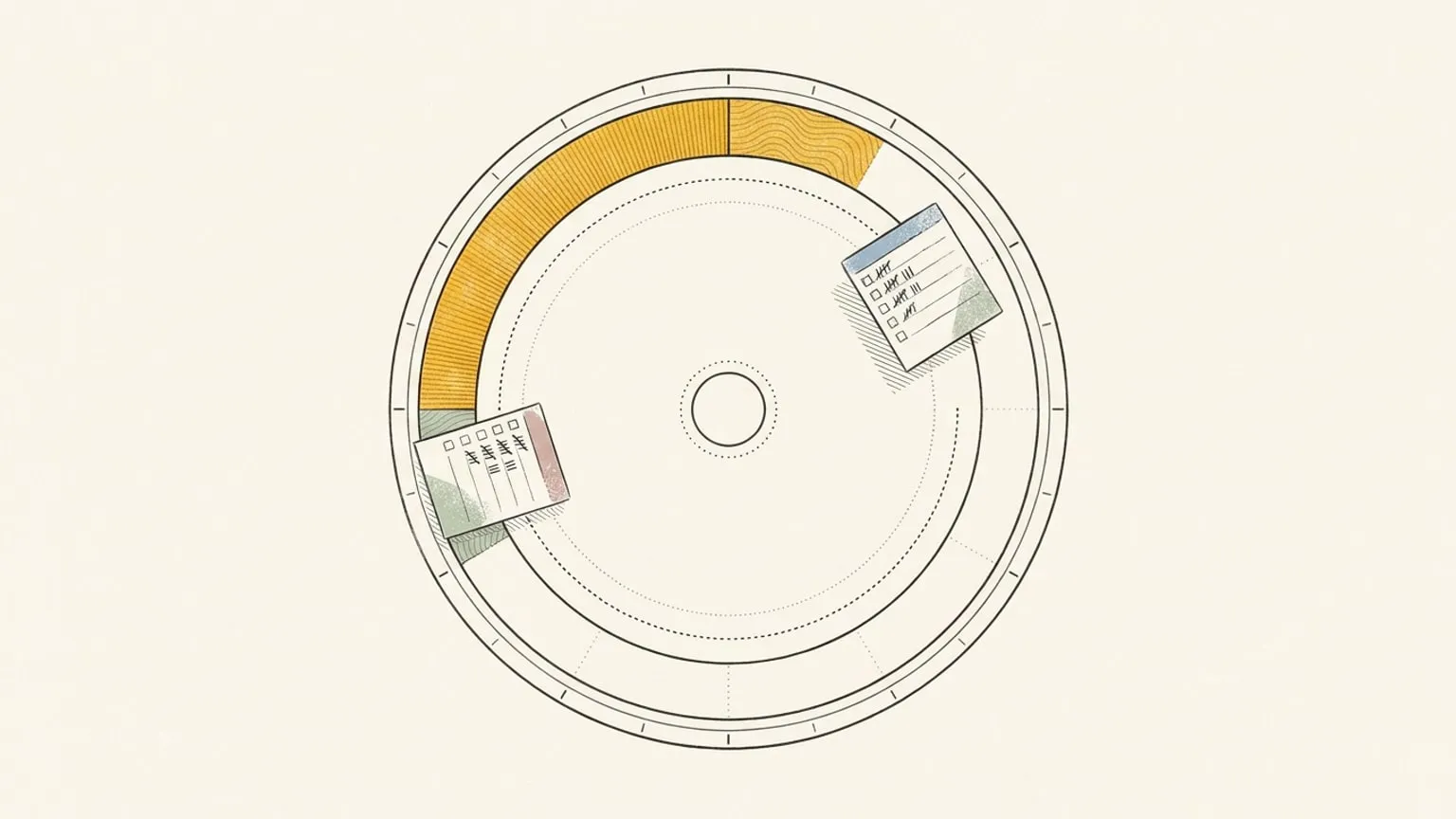
Reassign puts the tasks and meetings on one 24-hour dial. Give the report 45 minutes before lunch, put the call in the afternoon, and leave room to finish at 6. Each block occupies its actual share of the ring, so adding an hour changes the visible amount of day left.
The Inbox holds tasks you have not placed yet. A due date can remain Thursday while you schedule the work for Tuesday. When a meeting runs long, shift the following blocks together and undo the move if it does not fit.
This is most useful when you lose track of the evening while planning the morning, or keep adding work to a list without checking its length. The dial keeps the whole day in view. To Do keeps the detailed lists you already use.
Ask for help placing the work
In Ask AI, ask what fits before lunch or request a move in plain words. Typed and dictated chat requests return cards you review and apply. To use a paper list, open /braindump, attach a photo, and check What I read before applying the cards.
You can also speak directly to the dial. Safe edits apply immediately with one Undo. Deletes, clears, remembered preferences, questions needing your answer and app actions open in the palette for review. How voice planning works.
What syncs with Microsoft To Do
Connect your personal Outlook.com or Microsoft 365 account, then choose the lists to import. Dated tasks arrive in the Inbox under their due dates. Undated tasks import only from lists you opt in.
- Both ways: titles, plain-text notes, due dates and completion. Check off a linked block and the task is completed in To Do.
- In Reassign: the working hour and duration. Moving a block keeps its To Do due date; changing the due date does not move a placed block.
- In To Do: My Day membership, steps, files, reminders and repeat settings. Reassign’s microtasks do not sync with To Do’s steps.
My Day is not a separate list to connect. Choose the underlying task list, then decide which imported tasks to schedule. Adding something to My Day does not by itself give it an hour on the dial.
Outlook Calendar is a separate connection. Connect it as well to see your meetings beside the tasks. Disconnecting To Do stops sync and keeps imported tasks; it deletes nothing in Microsoft. The Microsoft To Do setup guide covers the steps.
Price and the tradeoffs
Microsoft To Do is free with a personal Microsoft account. Work and school accounts need a supported licence and Exchange Online. Your organisation’s setup determines access.
Reassign Pro costs $14/month or $120/year ($10/month billed yearly). All planner features and sync are included. The 7-day trial needs no card and never charges automatically. A subscription is required after the trial; your data stays. See pricing.
Reassign is an installable web app, and saving requires internet. Home-screen widgets are Soon. To Do’s mobile access and shared lists may matter more to you than a different day view. If To Do and Outlook already help you plan and finish work, another subscription has to earn its place.
Try both tomorrow morning
- Open My Day and choose two tasks you intend to finish today. If preparing tonight, keep them in a regular list until morning because My Day resets overnight.
- Check today’s Outlook meetings. Write down when you expect to work on those tasks and how long each needs.
- Start the Reassign trial, connect the underlying To Do list and Outlook Calendar, then drag the tasks into those gaps on the dial.
- At 3pm, compare My Day alongside Outlook with the day on Reassign’s dial. Which makes it easier to judge what still fits before you finish?
Keep My Day if the short list and Outlook grid do the job. Use Reassign alongside it if seeing the whole day makes the next decision easier. For the calendar side, read Reassign vs Outlook Calendar; for the general method, start with time blocking.
Frequently asked
- Can you time block with Microsoft To Do?
- Use Outlook alongside To Do. Open the My Day pane in Outlook Calendar, select the To Do tab, and drag a task onto the calendar to create an event. To Do itself keeps the task's due date and reminder.
- Is there a day planner that syncs with Microsoft To Do?
- Reassign syncs two-way with Microsoft To Do on personal Outlook.com and Microsoft 365 work or school accounts. Pick your lists, then drag imported tasks from the Inbox onto the 24-hour dial. Titles, plain-text notes, due dates and completion sync both ways.
- Can I use My Day to plan tomorrow tonight?
- My Day resets every night. Keep tomorrow's tasks in a regular list, with their due dates where appropriate, then add the tasks you choose to My Day in the morning. Unfinished My Day tasks remain in To Do and can appear in the next day's suggestions.
- Does Reassign import my My Day selection?
- No. Reassign imports from the task lists you connect. My Day membership stays in Microsoft To Do, along with steps, attachments, reminder times and repeat settings. Give an imported task working hours in Reassign separately.
- What does each app cost?
- Microsoft To Do is free with a personal Microsoft account. Work or school accounts need a supported licence and Exchange Online. Reassign costs $14/month or $120/year, with a 7-day no-card trial and no automatic charge. A subscription is required after the trial.