Reassign vs Google Tasks: give your list room in the day
Compare Google Tasks time blocking with a 24-hour circular day planner. See what Reassign adds, what syncs, and when Google Calendar is already enough.

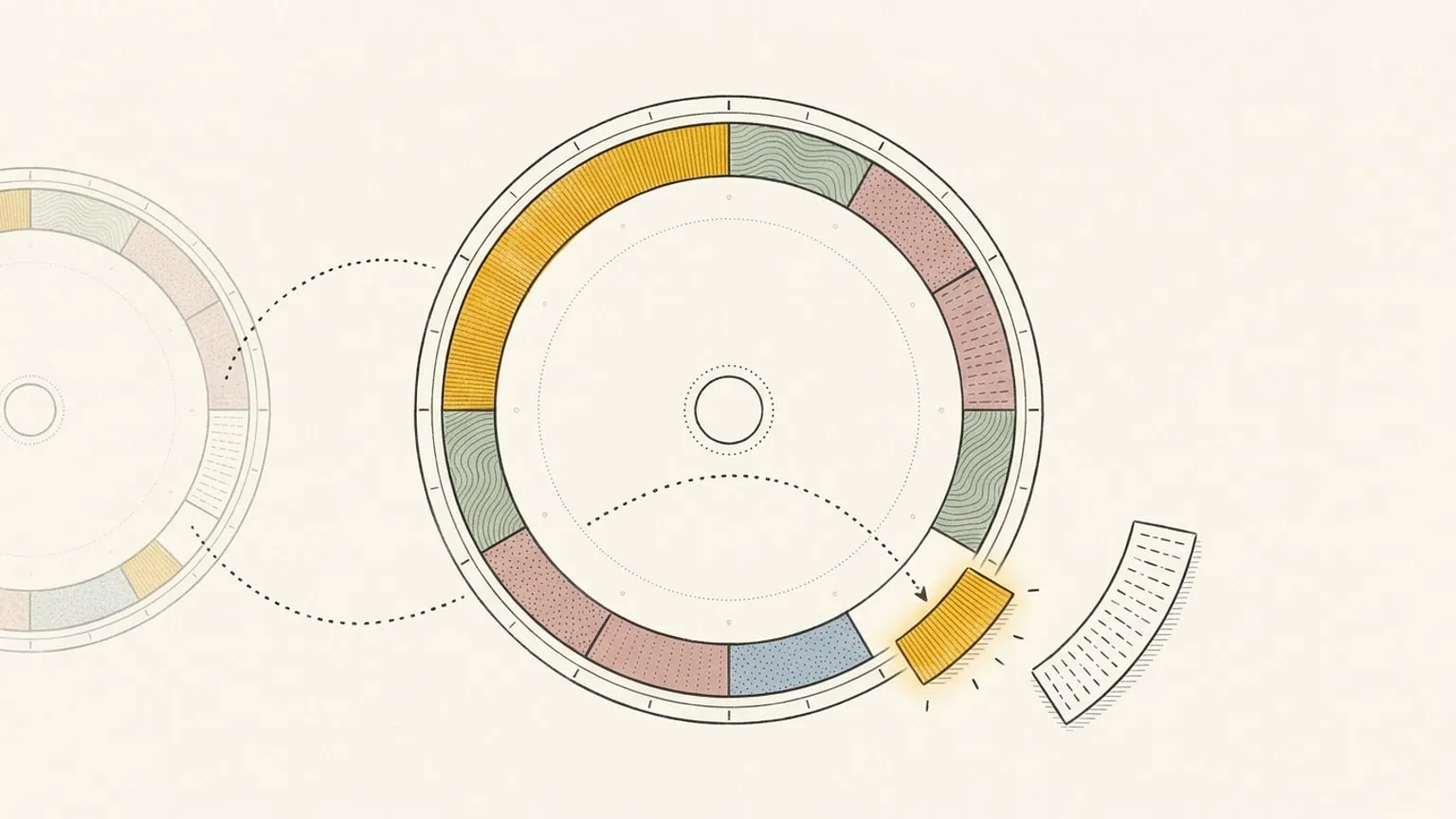
Keep Google Tasks if its lists and Calendar time blocks already help you plan the day. Try Reassign alongside it if you want to see your tasks, meetings and evening on one 24-hour dial. I build Reassign; this comparison explains when the extra planner earns its place.
Google Tasks and Reassign at a glance
Google’s linked sources were checked on 28 September 2026. The practical choice is how you want to see and adjust your working time.
| What you need | Google Tasks | Reassign |
|---|---|---|
| Capture and organise tasks | Lists, subtasks, stars and capture from Google apps | Inbox blocks, with microtasks inside each block |
| Give a task working time | Start and end times in Google Calendar | Draw or drag a block onto a 24-hour dial |
| See tasks beside meetings | Google Calendar | Connect Google Calendar separately to show meetings on the dial |
| Work from your phone | Google Tasks mobile app | Installable web app; internet required to save |
| Keep using both | Your task lists stay in Google | Two-way sync for titles, notes, dates and completion |
| Cost | Included with a Google Account; some work features depend on your plan | $14/month or $120/year after a 7-day no-card trial |
When Google Tasks is enough
Start with what you already have. Google Tasks gives you lists, subtasks and stars, with tasks close to Gmail, Chat and Calendar. Gemini can also turn a photo of a handwritten list into tasks. If capturing and finding work is your main problem, those are good reasons to keep using it.
You can already block time in Google Calendar. Create a task in an empty slot and give it a start and end time. Google’s Calendar task guide covers the controls, including Free or Busy availability and a separate deadline. Recurring tasks cannot have an end time; Do not disturb and automatic meeting declines require a work or school account.
If those blocks help you choose what fits between meetings, you may have all the planning tools you need. Reassign adds another way to read the same day, plus another subscription.
What Reassign adds to Google Tasks
Eight tasks are waiting. You have meetings at 10 and 2, and you want to finish at 6. The next decision is which tasks fit in the gaps.
Reassign’s 24-hour dial keeps morning, afternoon and evening on one face. Drag the proposal into the gap before lunch and give it 45 minutes. Its block takes up that share of the ring. Add another hour of work and you can see how much room remains.
Connect Google Calendar too, and your meetings sit beside the tasks. The now indicator shows where you are; past blocks fade. Colour marks the area of life, and the fill pattern marks the activity type.
When the proposal runs long, use shift everything after to move the following blocks together. Undo brings them back. Your task’s date in Google stays separate from the hours you choose to work on it.
The tradeoff is detail. Lists are better for scanning many task names and subtasks. Keep that detail in Google Tasks, and use the dial to judge how much work the day can hold.
Plan with a sentence or a paper list
Ask AI can answer a question about your day or suggest changes such as “move the proposal after lunch.” Type or dictate in the chat, then review the cards before applying them. For a paper list, open /braindump, attach a photo, and check What I read against the page before applying the plan.
Voice from the dial works faster: safe edits apply immediately with one Undo. Deletes, clears, remembered preferences, questions needing your answer and app actions open in the palette for review. The voice guide explains the difference.
What syncs with Google Tasks
Choose the lists you want to connect. A dated task arrives in your Inbox, grouped by date. Undated tasks come across only from lists you opt in. Drag a task onto the dial when you are ready to give it working time.
- Both ways: titles, plain-text notes, dates and completion. Finish a linked block in Reassign and the task is checked off in Google Tasks.
- In Reassign: the working hour and duration. Moving a block does not change its date in Google. Changing the date in Google does not move a block you already placed.
- In Google: subtasks, stars, recurrence, reminders and the separate Calendar deadline.
The distinction between a date and a deadline matters here. Google’s Tasks API reference exposes a scheduled date. It does not expose the Calendar Deadline field or let integrations read and write the scheduled time. Reassign therefore cannot mirror a Google Calendar task’s complete time block through this connection.
Reassign checks for changes every five minutes. Sync now on the source card pulls a change sooner. Disconnecting keeps the imported tasks and stops sync; nothing is deleted in Google. The Google Tasks setup guide walks through connecting a list.
Price and access
Google Tasks comes with a Google Account. Some work features, such as assigning tasks in Docs, need an eligible Workspace plan; Google’s Tasks product page explains those requirements.
Reassign has one Pro plan: $14/month or $120/year ($10/month billed yearly). Sync, Ask AI, focus and the other planner features are included. The 7-day trial needs no card and never charges automatically. After it ends, a subscription is required to use the planner; your data stays. See pricing.
Try both on tomorrow’s work
- Pick two Google Tasks you intend to work on tomorrow. Check tomorrow’s meetings in Google Calendar.
- Try placing those tasks in Calendar first. If the plan is easy to read and adjust, keep using it.
- To compare the dial, start the Reassign trial, connect one task list and Google Calendar, then give those tasks the same working hours in Reassign.
- Tomorrow afternoon, check both screens. Which makes it easier to see what still fits before you finish?
Keep the setup that helps you make that decision. For the method behind either approach, read the time-blocking guide. For other tools, visit the comparisons hub.
Frequently asked
- Can you time block with Google Tasks?
- Yes. In Google Calendar, create a task with a start and end time to reserve time for it. Recurring tasks cannot have an end time. If that grid already helps you plan around meetings, try it before adding another planner.
- Is there a day planner that syncs with Google Tasks?
- Reassign syncs two-way with Google Tasks. Dated tasks arrive in the Inbox; drag one onto the 24-hour dial to choose its working time. Titles, plain-text notes, dates and completion sync both ways. The hour and duration stay in Reassign.
- Does Reassign replace Google Tasks?
- You can keep Google Tasks for capture and lists, then use Reassign to plan when to work on them. Disconnecting stops sync and keeps imported tasks in Reassign. It deletes nothing in Google Tasks.
- Does Reassign sync the Deadline field from Google Calendar tasks?
- No. Google's Tasks API exposes the task's scheduled date, which is separate from the Deadline field in Calendar. Reassign syncs that date, but the Calendar deadline and scheduled time are not available through the API.
- What does Reassign cost alongside Google Tasks?
- Reassign Pro costs $14/month or $120/year, including Google Tasks sync and every planner feature. The 7-day trial needs no card and never charges automatically. A subscription is required after the trial; your data stays.