Not everything has an hour yet.
Type or say what you need to do, and AI separates it into Inbox items. Keep them off the clock until there is room, then drag each one onto your day. Blocks you send back to the Inbox keep their size and colour.
Included in Pro and the 7-day no-card trial.
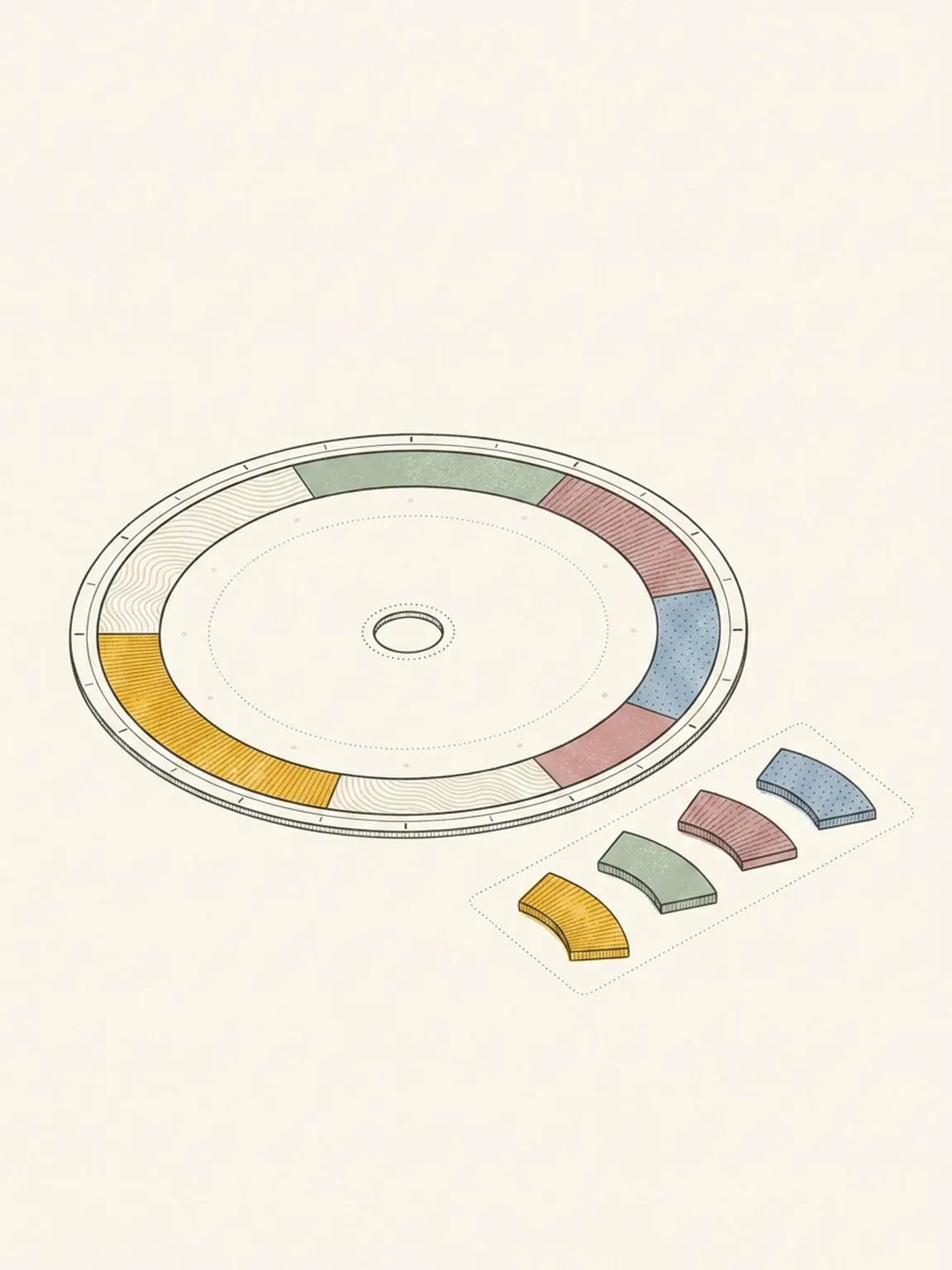
Get it out of your head. Give it time later.
Type or say “Call Sam, buy milk, book the dentist.” Reassign turns it into separate Inbox items. Drag each one onto your day when there is room. You can also capture selected text with the Chrome extension.
Add it to your Inbox, then drop it back on
Send a block to the tray and it drops its time and waits. Drag it onto the dial when there is room and it becomes a real, scheduled block again, at the size it always had.
Somewhere for the things you did not get to
A block you mark Didn’t happen in your reflection can drop into your Inbox instead of vanishing, and so can the microtasks you did not finish.
Pick an Inbox item as you name a block
When you type a block name, the suggestions show a From inbox group of matching Inbox items. Pick one and it moves into the block, leaves the Inbox, and keeps its task link.
Send it on to your task app
Give an Inbox item a Source, and it becomes a task in Todoist, TickTick, Google Tasks, Microsoft To Do or Linear, linked both ways. Name the list as you type (“Add to TickTick Home: buy medicine”) and the quick-add sends it there. Set Default sync to a task list and every new item goes there.
Sorted for you, filtered by you
A block you add gets sorted into the right area automatically. Filter the tray by area, type, or the task app it came from when it gets long, with more than one value per filter. Group it by date, integration, or type, open it as a full page with B, collapse the groups you are not working from, and give an Inbox block microtasks to break it down before it has a time.
Overdue without the red
Inbox blocks past their planned day group under “Overdue”. Nothing counts up, nothing turns red, and nothing resets. A full tray is not a scolding.
Capture leaves your plan alone
The quick-add AI only adds Inbox items. It cannot edit or delete your existing blocks. If Default sync to is a task list, or you name a list, each new item also becomes a task in that list. AI is instructed to route only when you name an app or list. An AI capture with no matched list uses your default, so check the item’s Source if the name was wrong. If the AI fails or refuses, the line goes in as one item. You choose when to put it on the dial.
This page is the what and the why. For the step by step, the docs cover the same ground as instructions: Inbox in the docs →
Questions
- Is this a to-do list?
- The Inbox holds things you want to give time to. Drag an item onto the dial to make it a scheduled block. It keeps any length you have set; you can adjust the block when you place it.
- Do tasks from my task apps land here?
- Yes. A dated task from Google Tasks, Microsoft To Do or Linear lands here under its due date; drag it onto the dial to give it an hour. A task that already carries a time, from Todoist or TickTick, becomes a block on the dial instead. Choose per list, team or project whether undated tasks come across.
- Can an Inbox item go to my task app?
- Yes, during your trial or paid subscription. Pick a task list as the item’s Source and Reassign creates the task there, then keeps the two in sync. It works with Todoist, TickTick, Google Tasks, Microsoft To Do and Linear. Delete the item in Reassign and the task is closed. Remove the list or its connection, and the items you made in Reassign stay.
- Can AI turn a list into Inbox items?
- Yes, during your trial or paid subscription. Type or say up to 2,000 characters in the Add to Inbox… bar, and AI splits it into up to 10 items. It can carry details into notes and estimate a length. It adds a planned day when you name one, and microtasks when you list steps or things within an item. Those fields are optional. If the AI fails or refuses, the line goes in as one item.
- What happens to my Inbox when paid access ends?
- Your data stays, including blocks in your Inbox. A subscription is required to use the planner after your trial or paid access ends. Contact support for help with your data.