From your first block to handing the day to Claude or ChatGPT.
Short, task-shaped guides to Reassign. Read top to bottom, or jump to what you need.
These are instructions. For what each feature does and why it works that way, read the feature pages.
Getting started
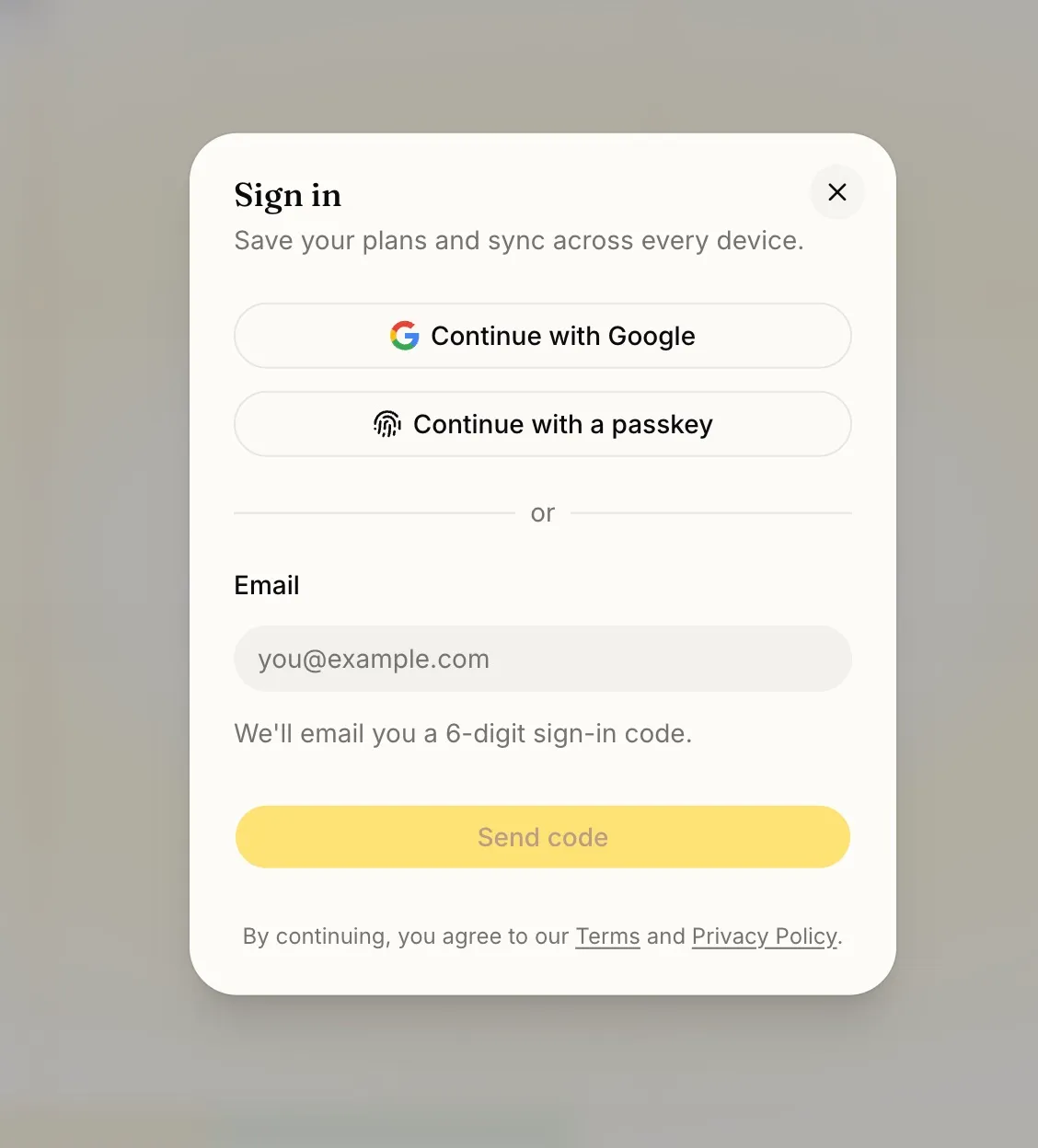
Open reassign.app and create an account or sign in: continue with Google or Apple, or use a 6-digit code we email you. Then draw your first block: press on the ring and drag from 7:30 to 9. That’s the whole loop: see the day, draw on it, reshape it as it moves.
Once you are signed in you can add a passkey from your account and use Touch ID, Face ID or a security key next time, straight from the email field. The email code stays your recovery path, so losing a passkey never locks you out of your days.
How do I read the dial?
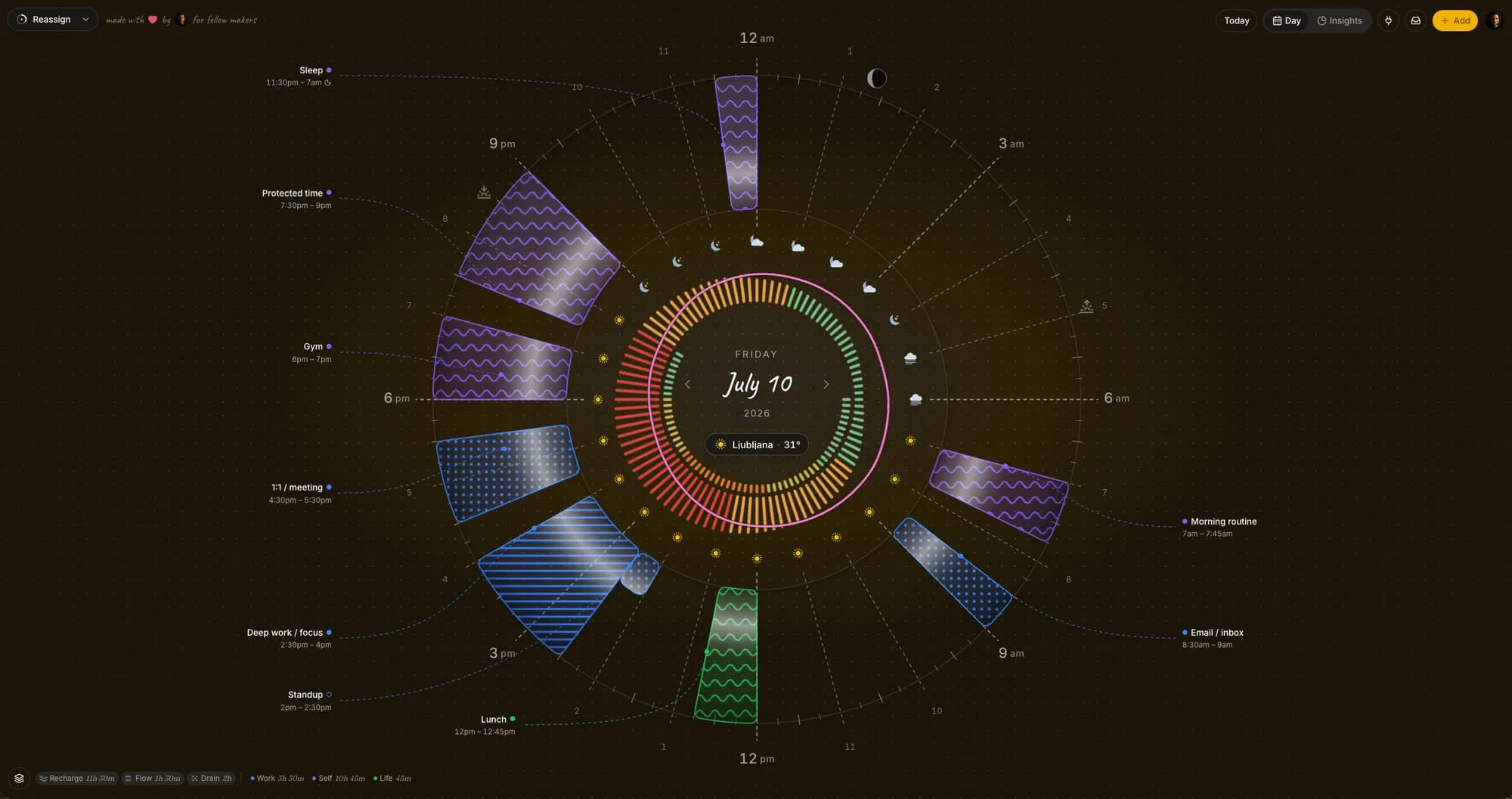
Reassign draws your whole day as one 24-hour face: midnight at the top, noon at the bottom. Morning runs down the right, afternoon and evening back up the left. A list flattens time. The dial shows its shape: where the day is full, where it’s open.
The now-indicator is the live red hand and bead at the current time; blocks already behind it fade. Move between days with ← →, and jump back to today with T.
For a roomier view, switch to the 12-hour half-day dial and swipe between morning and afternoon; the full ring stays a tap away. That is a setting on the dial rather than a separate view: to read the days after today there are two more day modes, list and timeline ↓. A Layers control, bottom-left, turns on the overlays that wrap the ring: weather, moments and mood, energy. More on layers ↓
How do I see the days ahead?
The dial shows one day. Two other day modes read the stretch beyond it, and both are included in Pro. Switch with the view control in the top bar, or on a desktop keyboard press V for the dial, L for list, G for timeline. On a phone the view control is the way in.
List runs forward from the day you are on, grouped by day, thirty days at a time and up to a year out. Each day heading says what is planned and links straight to that day on the dial. Filter by name to find one block, and tick a microtask step right in the row without opening anything. Days with nothing on them are left out: the list answers what is planned, not what a calendar grid looks like.
Timeline is the same stretch laid flat. Days run left to right, each area gets its own lane, and a block is drawn at its real length. Turn on the energy or weather layer and it runs along the bottom. ← → pan a day at a time and ⇧ with them strides a week; = and - step the zoom through five fixed rungs, measured in days on screen, from nine hours up to six days.
Neither one drags. There is no moving, resizing, reordering or drawing a block in either view. Click an event and you get the same card the dial gives you, so you can edit it or mark how it went. On a desktop, right-click a list row, a timeline bar, or an Inbox row to open the event menu. It leaves out the dial-only items, such as Enter focus and Shift later. Drawing a day stays on the dial. More on editing ↓
List and timeline →What do the colours mean?
Two things describe every block, and they’re independent. Area is a colour: what part of life a block belongs to. Activity type is a fill pattern: what kind of energy it takes.
Area → colour
- Work
- Relationships
- Self
- Life
Editable, with 18 one-tap presets plus a custom cell that opens your system colour picker for any exact colour. All included in Pro. Rename them to your own life.
Activity type → pattern
- Recharge waves
- Flow solid
- Grind hatch
- Drain dots
Make your own to match how your days actually feel.
Delete any area or activity type, built-ins too, with the X on its row. A deleted built-in is hidden for you only. If events, Inbox items, trackers, or calendar defaults use it, Reassign asks first: pick another one under Move it to, or keep No area or No type to clear the link. Undo brings back the category and its links. Names are unique, so a rename to a name that is already in use is blocked.
Draw a block on the dial and AI starts to set its area and activity type about 1 second after your last change, or at once when you close the editor. A block you make on the dial always gets both. A value you set stays: the AI only fills an empty field. In the Area or Type picker, search text that matches nothing offers New area “…” or New type “…” with your text as the name.
Editing your day
Grab a block to move it; pull an end to resize it. These are dial gestures: the list and timeline modes open a block for editing but never drag one. Sweep a block straight across midnight or noon and it stays whole. Layer non-blocking events (a fast, a night’s sleep) on the inner ring, where they can overlap everything else, or drag a solid block over another and it slims into a non-blocking band on the spot.
Not everything on the dial is something you do. A reference event (a kid’s training, a delivery window) sits as a slim band just outside the ring: there to see, never taking your time or blocking a plan. Hold M and draw one, or switch any block into or out of Reference from its Kind menu.
Changed your mind? Undo rolls back recent edits, and a toast brings back a deleted block. The day bends instead of breaking.
Reschedule and shift →How do I use the command palette?
Press ⌘ K anywhere, or tap Create in the header. One list drives the whole app. New event, log a mood, add a moment, clear your afternoon, evening, or the whole day. Jump between days, toggle a dial layer, open Insights, reflect, connect a calendar, reach any settings pane. On desktop it’s a popover rather than a wall: the day stays visible behind it, and everything you do previews on the ring before it lands. On your phone it opens as a sheet.
It reads like a launcher. A large search field sits on top. With the field empty, Suggestions shows the five commands you run most, remembered on this device, above one Commands section. Each row carries an icon, a title, its group, and its type. A bar at the bottom names what Enter does and opens Actions.
- Enter
- Run the selected row
- ⌘ Enter
- Run the row’s second action, where it has one
- ⌘ K
- Inside the palette: open the Actions panel for the selected row, with its own search
- ⌘ ↑ ↓
- Jump one section up or down
- Tab
- Take what you typed into the AI chat
- Esc
- Clear the query, then close
Type a plain sentence and it parses as you type. Gym tomorrow at 6pm becomes a
block at the right day and hour, created on Enter. That path is
instant and local: no round trip to a model. Saving the block requires an internet connection. Name an area or a project and a type
in the same line (#work, @flow) to paint it as you go. A
#name matches a project or an area, and _ stands for a space
(#Home_test). Leave the
time off (read more books) and the palette offers to add it to your
Inbox instead.
How the palette works →
Start with / to name the verb: /create, /park,
/shift, /delete, /mood, /moment,
/braindump, /microtasks. The verb
becomes a small chip in the input and the field carries
only your words. Backspace at the start, the chip’s x, or Esc
backs out one layer.
For the requests with commas in them, Ask AI
takes the whole line: gym tomorrow at 6pm and lunch 15 minutes after, swap these two, clear
my afternoon and park gym. It comes back as cards you can edit or uncheck before you apply,
and it lands as one undo. In the palette nothing fires on its own: a plan is always
something you approve, and calendar events you don’t
own are left alone. The app actions the AI can reach are the reversible ones, jumping days
or toggling a layer, never your settings and never connecting a calendar. Three AI paths apply
without cards: voice on the dial (a delete or a clear waits
for your Confirm), the Inbox quick-add, and the
Chrome extension (its side panel, and /ask in the
address bar, which can delete a block). The Inbox quick-add only adds Inbox items, and
each item can also become a task in a task list that you name or set as your default.
Braindump takes everything at once. Type
/braindump and the input becomes a multi-line field. Dump the lot, one thought
per line, then ⌘ Enter. A line with
a time becomes a block on the day it names, a timeless to-do goes to your Inbox, a
feeling logs as a mood, and a cadence like “25 on, 5 off” sets that block’s
focus rhythm.
When a line is genuinely ambiguous it asks, with the options already worked out, so one click resolves it. Reply in plain words to refine the plan before you apply it. A dump can never delete or clear anything, and if it hits its size limit it tells you what it left out. How braindump works →
The command palette → Ask AI and braindump →How do I chat with Reassign AI?
The AI lives in a chat view inside the palette. Press Tab to
carry what you typed into it, type /ask or /braindump, or pick the
Ask AI row. The header reads Reassign AI. The field takes
more than one line: Enter sends,
⇧ Enter adds a line.
Esc stops a reply in flight, or else goes back to the list.
Ask about your plan and it answers in a short line: what is left today? It reads your schedule, your free time, and your Inbox before it plans, and it knows the routines you keep. It is a chat about your day, not a general chatbot: an off-topic request gets “I can only help with your plan.” and no changes.
Ask for a change and it comes back as cards with Apply. One line can break a block into 3 to 7 steps (break writing into steps), tick, untick, rename, or remove one microtask by its text, split a block in two at a time inside it, or edit a block in place: its name, its end, its area or type, its kind, or its notes. On a repeating block, say this day, the whole series, or this day and later. If you do not say, it asks one question with the three options ready, and it does not guess.
State a preference (I never take calls before 10) and you get a Remember card. Apply it and one line joins your saved AI guidance. Nothing is saved until you apply.
Attach a photo or a PDF
Tap + in the composer, paste an image, or drop a file on it. Attach up to 3 files to an Ask AI or braindump message: JPEG, PNG, WebP, or PDF. The app scales a photo to 1600 px before it sends. A HEIC photo is converted where your browser can read it; if it cannot, the app asks you to convert it to JPEG. The limit is 1.5 MB for each file and 3 MB in total.
Open /braindump to send a photo of a paper list with no typed text. Check
What I read against your page, including dates and crossed-out lines,
then edit the cards before applying the plan. Handwriting can be misread. Lines under an
item can become that block’s microtasks. /microtasks does not take files.
Dictate instead of typing
In the chat composer, hold the mic or hold ⌃ M, talk, and let go to end the clip. That is Control, on a Mac too, because ⌘ M minimizes the window. A tap shorter than 300 ms drops the clip. With a screen reader, a click still starts and stops a clip. Enter stops the clip, Esc cancels it, and a clip ends at 60 seconds. The text goes in at the caret and never sends itself. A clip with no speech is not sent. The first time, your browser asks for the microphone; if you said no, allow it in your browser’s site settings. On a phone, the mic turns the input into a full-width voice bar with Cancel, a live wave, a timer, and a check button that sends the clip.
The same hold-to-talk mic sits in the notes of the event editor and in the Inbox quick-add. A clip in the notes goes at the end of the text. A read-only event has no mic.
Ask AI and braindump →How do I talk to my day?
Hold the voice icon in the dial centre, or hold ⌃ M on the dial, and say what you want: move gym to 7, add a walk after lunch. Let go to send. A tap shorter than 300 ms drops the clip, and Esc cancels. Your words show live on the dial toast while you talk.
You do not have to wait. Talk again while earlier clips still process. Each clip gets its own toast, from Hearing… to Queued to Planning, and the plans apply one at a time, in the order you spoke.
Safe edits apply at once, with one Undo for the whole batch in a toast. Safe means a new block, a move or an edit, a send to your Inbox, a microtask change, a split, a moment, or a review mark or day note. None of them deletes a block, and the Undo puts back anything an edit removed.
A delete, a clear, or a remembered preference never applies by itself. The
toast shows Confirm and Review. Confirm with the button,
the Y key, or by saying “yes”. Review opens the plan in the
palette chat. A question back to you or an app action shows Review and
Dismiss, with no Confirm. A plain question gets its answer in a toast.
Voice on the dial, the Inbox quick-add, and the Chrome extension
(its side panel and its /ask line) are the three AI paths that apply without
a card review. The Inbox
quick-add only adds Inbox items, and a task in a task list that you name or set as your
default.
How do focus intervals and focus mode work?
Open any blocking block, one that fills the ring rather than overlaying it, and split it into a focus rhythm: intervals of focus and break, drawn round the block itself. The dial fills it with focus beads joined by the muted Recharge texture for the breaks, and the rhythm reflows live as you change the minutes. Set it with steppers or quick-pick chips, and your last few rhythms stay as presets. It rides on the one block, so the event still selects, drags, repeats, and syncs as a single thing. How focus intervals work →
To work through it, press F or choose Enter focus from the block’s menu. Reassign opens a screen built for one block: the real dial, your events and layers still on it, cropped to an arc and turning under a marker pinned at now. The turning is the countdown. Beside it the focus card names what you’re in, how much is left, and what follows. In focus, the card takes the area colour and the fill pattern of the type; on a break it goes plain. A line on the card shows the split: SESSION with the focus and break minutes of this block, or TODAY with your totals once you have 1 minute of focus. Tap an interval circle to mark it done, tap a future one to finish early, or add and drop intervals as the block runs.
Choose 25/5, 50/10, 90/15, a custom rhythm, or no breaks before starting; your choice is saved to your account. Press Pause to open a break at now and Continue to go on; every later interval and break moves by the length of the pause. On an automatic break, Skip break takes the place of Pause: it ends the break now and the next focus starts. Finish the session when you need to stop. The toast reads Session finished with Undo, and ⌘/Ctrl Z undoes it too.
A sleep block is rest, not work. The card reads Time to rest until your wake time (Sleep ended if it runs over), with no countdown and no Pause. In the first half, Add 15 min starts sleep 15 minutes later and keeps the wake time. In the second half, I’m awake ends the sleep now. The TODAY total never counts sleep. Sound controls cover focus and break bells and microtask completion, with an optional metronome. The screen stays awake while you work, and Esc returns to the day.
If the block itself needs to move, there is an answer for that too: move the block. When the time is up and the next block sits too close to absorb the extra, focus mode offers Push the rest later, which takes the full extension and slides everything after it along by the same amount. It only shows up when the extension will not otherwise fit and the rest of the day can actually move, so nothing ever reorganises your day on its own, and ⌘ Z puts both the block and the day back. It is the same shift as S on the dial, offered where you are standing.
Nothing is counted for you: a finished interval is one you marked. Those marks roll into the day’s reflection and the Focus by day and Focus by area panels in Time Insights. Claude or ChatGPT can read and set a block’s rhythm over MCP too. How focus mode works →
Focus intervals and focus mode →Microtasks: break a block into a checklist
Some blocks are one thing. Others are a handful of small microtasks you’re holding in your head. Open any block and give it a microtasks checklist: an ordered list you tick off as you go. The block wears a quiet done-of-total count on its label, so a glance tells you how far in you are.
It’s a breakdown of the one block, on purpose, not a task manager. No due dates, no separate list, nothing to keep in sync. Add a microtask and press Enter for the next, then tick it, rename it, or delete it in place. On a block that’s already on your day, each one saves the moment you commit it, so there’s no Save to remember. Every kind of block qualifies: a solid working block, a non-blocking or reference band, and a block waiting in your Inbox, which lets you break something down before it has a time.
You don’t have to write the list yourself. In
focus mode, a block with no microtasks yet offers Break this
down , and one tap gets you a list. From the command
palette, type /microtasks (or pick Microtasks…), choose
the block, and you get a moment to say what you want out of it, just the writing bits,
I only have an hour. Send it empty and the list comes from the block alone.
Either way the list is drafted from the block’s name, its length, and its focus rhythm, so it fits the time you have. If the block is too vague it asks one question rather than guessing. Nothing is written until you accept the proposal, and from the palette the whole batch lands behind a single undo. Inbox blocks work too.
Tick a microtask from the editor, or straight from the dial label (the desktop label lists the next few still open, each with its own box). Focus mode shows them beside the turning dial too, on blocking blocks, where you can add one without leaving. On a phone it shows one at a time over a swipeable progress rail, carrying you to the next still open as you tick.
On a repeating block the microtasks are shared across every occurrence, but the ticks stay on the day you make them, so a daily routine keeps its list and each morning starts fresh. Changing the list itself asks whether you mean this day only or every occurrence; ticking never asks.
Afterwards they carry into your reflection, each in the state you left it, and on a one-off block you can send just the unfinished ones to your Inbox in a tap, with an undo. Time Insights reads them back as Microtask follow-through by area, and the morning email lists what’s still open under your next block. Nothing is counted for you and nothing turns red. Writing, ticking, and AI task breakdown are all included in Pro. Why the microtasks live in the block →
Claude or ChatGPT can manage them over MCP too: read a block’s microtasks and how many are done, rewrite or reorder them, and tick a microtask off by name, saying whether it means one day or the whole series. It can put microtasks on an Inbox block as well.
Microtasks →Recurring events
Repeat a block on a preset: daily, weekdays, weekly, biweekly, monthly, or yearly. When you edit one, choose whether the change touches this event, all future ones, or the whole series. Need a one-off exception? Edit a single occurrence and the rest of the series stays put.
Two presets take it further without turning into a rule language. Under Weekly, pick exactly which days it lands on, so “Mon, Wed, Fri” is one rule rather than three blocks. Under Monthly, repeat on the nth weekday instead of the date: a block on the month’s first Saturday offers “First Saturday”, one on its last Monday offers “Last Monday”. Both are written the way Google Calendar writes them, so a synced series survives the round trip unchanged.
Recurring events →Calendar & task sync
Connect Google Calendar or Outlook (Outlook.com or Microsoft 365) and your calendars land on the 24-hour dial in their own colour, as editable blocks sorted into your areas by AI. The sync is two-way: move, resize, or edit a block and it updates at the source, kept current in real time with a manual Sync now whenever you want it.
Bring as many calendars as you like and show or hide each one. Mirror a block across more than one calendar, or move it between them, and Reassign re-homes it for you. Per calendar, set the Area and Activity type for every event, or pick Let AI choose and add rules in your own words. Mirror events makes a one-way copy of each new event on a calendar you pick: always, never, or only when the AI finds that the event matches your rule. Task lists never mirror. Google Calendar setup offers Start syncing at once, or Fine-tune first for the optional steps. A preview shows your next 3 events with their AI area and type, and it stores nothing. How mirroring works → All-day events show as an always-visible card, never blocking your hours; a calendar you don’t own comes in read-only. Disconnecting stops sync and keeps imported blocks. Delete the connected source to remove its linked imports from Reassign without changing originals at the provider. Copies on other connected accounts are queued for deletion, but copies on the account you remove can remain. Turn off mirrors while both accounts are connected and check the target before removing a connection. Revocation and data deletion → How calendar sync works →
Choose what each mirror copy shows: Full details, Private, or Busy only. The event at the source never changes. Private and busy-only copies →
- Private: the copy keeps the title and notes. Calendar permissions control who can read them; the owner and people granted access to private details can still see them.
- Busy only: the copy stores “Busy”, or your custom busy title, with empty notes and no reminders.
- Calendar default: in a Google or Outlook calendar’s settings, under Copies on this calendar. With Busy only, rename the title with Title of busy copies.
- Per event: open the mirror menu (Mirror to calendars… when no calendar is picked yet) and pick a style per calendar under What each copy shows.
- Which wins: the event’s own choice, then the calendar default, then Full details. Copies without an event override use the default and update in place when it changes. An explicit event style still wins.
- Dial-only blocks: a one-off block with no home calendar can get copies. A repeating block needs a home calendar for copies.
- Limits: a series has one style per calendar. To change it on a repeating event, choose All events or This and following events. A copy never carries location, attendees, or colour. A Private or Busy only copy of an event that does not block time shows as free. After Busy only, Outlook reminders stay off when you switch back to Full details.
Todoist brings your tasks onto the ring: a task with a due time becomes a block, and an undated one waits in your Inbox. Schedule, edit, or check it off on the dial and it flows back to Todoist; finish a task over in Todoist and it’s marked done here. Choose per project whether undated tasks come across. How Todoist sync works →
Google Tasks, Microsoft To Do and Linear sync due dates; your planned working hours stay in Reassign. A dated task, or a Linear issue assigned to you in a team you pick, lands in your Inbox under its date. Drag it onto the ring to set the time and the length, which stay in Reassign: moving the block never changes the due date. Titles, notes, due dates and completion sync both ways, every few minutes, with a manual Sync now on the source card.
A Linear issue with an estimate can bring its length too. Under Estimates on each team, set One point is to 15 min, 30 min, 1 hour, or 2 hours (Off by default). The Inbox length is then the points times that length, from 5 minutes to 24 hours. Send durations to Linear writes back: Off, Only when empty (it never overwrites an estimate a teammate set), or Always (each length change writes the nearest point on the team’s scale). A length you set wins until the estimate changes in Linear. Duplicate and canceled issues leave the Inbox.
TickTick carries a real start and due time, so a timed task becomes a timed block on the dial. Move or resize the block and the new times write back to TickTick. A date-only task keeps its date and waits in your Inbox instead. TickTick has no webhooks, so Reassign checks it about once an hour; use Sync now to pull a change sooner. For Todoist and TickTick, a timed task more than 30 days ahead joins the dial once it is within 30 days.
Sync also goes out. An item you add to your Inbox can become a task in any of the five task apps: pick a list as its Source, and Reassign creates the task when you save. Set Default sync to a task list to send every new Inbox item there. The new task gets the title, the notes, and a planned day as its due date. Todoist also gets the length, when the item has a day. TickTick gets an all-day date, and Linear gets no estimate. Change the Source of a linked item to move its task, or pick Reassign only to delete it in its app and keep the item; both ask first. A Linear item stays in Linear. Delete a linked item and Reassign closes its task. Remove a list or its connection, and the items you made in Reassign stay.
For Microsoft To Do, the steps of a task are the microtasks of its Inbox item, both ways. Step text syncs; ticks stay on their own side. A merge never drops a microtask you wrote, and the steps stop syncing once the item is on the dial.
Projects and priority sync too. Your Todoist projects, and your TickTick, Google Tasks and Microsoft To Do lists, show as projects in Reassign. For Linear, each Linear project with your issues does. A list links to the project with the same name, so two lists with one name, from two apps, share one project. Change the project of a linked task and the task moves to that list in its app. Priority syncs both ways with Todoist, TickTick, Linear and Microsoft To Do, also from a block on the dial. Microsoft To Do has only low, normal and high, so a level can round. Google Tasks has no priority, so none syncs there. How projects and priority sync →
Calendar and task sync →Layers: weather, mood & moments, energy
The dial is a 24-hour clock, so more than your plan can wrap around it. The Layers control, bottom-left, toggles each overlay on or off; the red now-indicator is a layer too.
Weather wraps the forecast around the ring: a day/night disc for sunrise and sunset, a temperature curve, and condition marks you can scrub by the hour, for the days ahead as well as today, in your units. The moon sits at the best hour to see it. Hover it for the phase and its rise and set times. Read how →
Moments & mood log the things you count through the day as points on the ring: a coffee, a glass of water, how you feel. Drag a mark to re-time it; the legend reads each one’s daily tally, average, or total. Mood and tracking your own moments are both included in Pro. Read how →
Energy draws a per-hour curve around the ring, high where you’re likely sharp, low where you’ll flag. Set your bedtime and sleep need once (with separate weekday and weekend schedules if you keep them), log a single night, and today’s curve draws. For a free preview from just your sleep times, try the circadian rhythm calculator: a prediction, not a measurement. Opt in to Cycle rhythm in the energy settings and the curve bends with your menstrual cycle too, from one period-start tap a month: off by default, its own explicit consent, never in analytics, email, AI, or MCP, and deleted in one tap. Read how →
Weather on the dial → Energy curve → Moments and mood →Reviewing a day
The dial holds the day you planned. It can hold the day you lived, too. When a block on today finishes, its editor opens ready to mark, As planned, Didn’t happen, or Changed (with the real time). Didn’t happen? Reschedule it or drop it into your Inbox in one tap.
Step back to a past day and the marks roll up into a quiet read of how closely you kept to your plan. It rewards honesty, not a high score. Review yesterday or any earlier day with Pro. Claude or ChatGPT can read a day back too. How day review works →
You can also review in words. In the AI chat, or by talking to the dial, say how a past day went, or how today went: gym happened, skipped the reading, lunch ran until 2. That is review mode. It records marks, moments, preferences, and a day note (what went well, what went badly, a lesson), and it never changes the plan. I did not do X becomes a Didn’t happen mark, never a delete. When every block has a mark, the same batch confirms the day, and Undo reverts that too.
Reflection and Time Insights →Inbox of blocks
Some things you mean to do don’t have a time yet. The Inbox is a tray of blocks with no time on them, off the clock but still sized and coloured. Send a block to it and it drops its time and waits; drag it onto the dial when there’s room and it becomes a real, scheduled block again. It was called the Backlog until August 2026.
Filter the tray by Area / Project, type, Priority, or task app, collapse the sections you are not working from, and a block you add gets sorted into the right area for you. An Integration filter narrows the tray to one or more task apps, or shows them all together. Each filter takes more than one value, and active filters show as chips; Clear filters and Reset view start over. Group the tray by Date, Integration, Type, Project, or Priority, and sort it by Manual, Priority, or Planned date. Drag to reorder works in Manual. Press B to open the Inbox as a full page; Back to your day returns to the dial. It’s where tomorrow’s maybes wait, and where a block you mark Didn’t happen can land instead of vanishing. Why the dial needs an inbox →
On a desktop, right-click an Inbox row for the same event menu the dial has. Its Quick edits group changes the kind, area, type, priority, length, or planned day without opening the editor, and Add to a task app sends the item to one of your task lists. A block that a task app feeds shows Complete task in the right-click menu, the card menu, and the mobile editor.
A project is an outcome inside an area, one level deep. Add, rename, move,
archive, or delete projects on the Projects card under
Settings → Areas & types. The Inbox editor and the event editor share one
Area / Project picker, and an Inbox row shows Area › Project.
An archived project leaves the pickers but keeps its links. A deleted project leaves its
items in their area.
Give an item or an event a priority: Urgent,
High, Medium, Low, or No
priority. Use the flag on an Inbox row, the Priority field in the
Inbox item editor, or keys 1 to 4 (1 is Urgent)
on the selected dial events or the focused Inbox row. 0 clears
it. In the Inbox quick-add or the ⌘K create line, end a line with p1 to p4, or
! to !!!!: p1 and !!!! are Urgent,
p4 and ! are Low.
The Add to Inbox… bar sits at the foot of the Inbox window, the Inbox page,
and the mobile drawer. Type a line and press Enter, or hold the
mic and say it. During your trial or paid subscription, AI splits the line into up to 10
items. Each gets a title. AI can carry details into notes and estimate a length; it adds a
planned day when you name one, and microtasks when you list steps or things within an item.
Notes, length, day, and microtasks are optional. A #area or
#project tag, or an @type tag, applies to every item, and a line can be up to 2,000 characters. If the AI fails or
refuses, the line goes in as one item. The Chrome extension and
capture_text over MCP and the API use the same AI split.
The Chrome extension opens a side panel, which replaces the popup. The toolbar icon, a right-click, ⌘/Ctrl ⇧ U, and the address bar open it. Type in one field, Shape your day with free text: your words set the day and time, or send the item to the Inbox. The page selection or title fills it, and the page link goes along. Below it, an agenda lists your days. Set its range under Side panel: Today, Today and tomorrow (the default), or The next 7 days. Settings open inside the panel from the gear. After an add, a card with Undo shows for 8 seconds.
To send an item to a task app, name the list at the start or end of the line: “Add to TickTick Home: buy medicine” or “call the bank in my Todoist”. The list words leave the title. AI is instructed to route only when you name an app or list. An AI capture with no matched list follows Default sync to, so check the item’s Source if the list name was wrong. If AI fails, the plain parser still recognises a routing phrase. In that fallback, an explicit “Add to…” instruction naming an unavailable list keeps the full line in Reassign. Inbox items in your task apps →
When you type a block name, the suggestions show a From inbox group of matching Inbox items. Pick one and it moves into the block, leaves the Inbox, and keeps its task link. On the Inbox page, search and filter sit in the top nav on desktop and stay pinned on mobile.
Inbox →Time Insights
The dial is where you live a day; Time Insights is where you see the shape of many: where your time goes by area and activity, your rhythm over the weeks, how the days felt, sleep debt and your energy readout , what recharges you versus what drains you, and the focus intervals you marked done, by day and by area. It’s built from the days you reflect on, the intervals you mark, and the moments you track: the more you look back, the fuller it reads.
Block and break alerts
Get a nudge when a block starts, a break begins or focus resumes. Open Settings → Notifications → Push, turn on this device, and allow notifications when your browser asks. Use Send test to check that they reach you.
An alert goes to every device where you turned alerts on, up to the 50 you used most recently. Your devices lists them, this one first. Open a device to set each alert type to Account (your default), On, or Off for that device only. You can turn another device off from the list, but you turn a device on only from that device. Each device gets its own “Back to” alert when a break ends.
Block starts, break starts and focus resumes are on by default. Two more alert types are off by default: when a non-blocking item starts, and when a reference item starts. Turn them on under Items. On iPhone and iPad, add Reassign to your Home Screen first, then open it there to enable notifications. Why the next block gets a nudge →
Email digests
Reassign can write home. Four emails, each its own switch: a morning brief (today at a glance: your plan, first block, energy peak), an evening plan nudge when tomorrow is still empty, an evening reflect prompt to mark how today went, and a Monday weekly review of where the week’s time went. Each carries your real day drawn as the dial, and tapping a block opens that event on the ring, ready to edit.
Turn each one on or off in Settings → Notifications, pick its local hour (and the weekly’s weekday), or keep the daily ones to weekdays. A new account starts with the evening plan nudge (at 20:00) and the weekly review on. An older account keeps only the weekly review on by default. Everything else is opt-in. They are built to stay quiet: an action email skips when you’ve already done the thing, a digest you stop opening pauses itself, and every email has a one-click unsubscribe. Why the dial writes home →
Keyboard shortcuts
Reassign is built to be driven from the keyboard.
- ⌘ K
- Open the command palette
- ⌃ M
- Hold to talk to your day on the dial, or to dictate in the AI chat (Control, on a Mac too)
- Y
- Confirm a spoken change on the dial toast
- 1–4, 0
- Set the priority of the selected events or Inbox row (1 is Urgent); 0 clears it
- C
- New event
- M
- Draw a reference event (hold and drag on the ring)
- Del
- Delete the selected event
- D
- Duplicate the selected event
- S
- Shift this event and everything after it
- ← →
- Previous / next day
- T
- Jump to today
- V
- Go to Day
- L
- Go to List
- G
- Go to Timeline
- F
- Enter focus mode
- I
- Go to Insights
- H
- Switch between the 12 and 24-hour dial
- ⌘ Z
- Undo
- ⌘ B
- Toggle the side panels
- ⌘ P
- Print your day
- Esc
- Deselect, close, or leave focus mode
- ?
- Open keyboard help
How do I connect Claude or ChatGPT?
Reassign is an MCP server, so Claude, ChatGPT, or any MCP client can read your real day and
reshape it with the same moves you’d make by hand. The connector lives at
https://reassign.app/api/mcp. Pick your client:
Claude & ChatGPT (custom connector)
- 1
Open your AI's connector settings
In Claude (web or desktop), open Customize → Connectors, click +, then Add custom connector. In ChatGPT, turn on Developer mode under Settings → Apps → Advanced settings, then open Settings → Connectors and click Create. Menu names move; the server URL below does not.
- 2
Add a custom connector
Fill in the form, then click Add:
- NameReassign
- Remote MCP server URL
https://reassign.app/api/mcp
- 3
Connect and approve access
Click Connect, sign in to Reassign if prompted, choose your scopes (
events:read,events:write, or both), and approve.
Claude Code (plugin)
- 1
Install Claude Code
Follow Anthropic's quickstart for Claude Code.
- 2
Add the marketplace, then install
Run these in a Claude Code session. The first adds Reassign's plugin marketplace; the second installs the scheduling plugin (skill + MCP connector):
/plugin marketplace add reassignai/plugins/plugin install reassign@reassign - 3
Authenticate with Reassign
Run
/mcp, select the Reassign server, then sign in and approve access (chooseevents:read,events:write, or both)./mcp
npm / any stdio MCP client
- 1
Point your client at the npm shim
Any MCP client that speaks stdio (Cursor, Windsurf, custom agents…) can run the published shim. Add it as an MCP server with this command:
npx -y @reassign/mcp - 2
Authenticate with Reassign
On first run the shim opens an OAuth flow: sign in to Reassign and choose your scopes (
events:read,events:write, or both). It talks to the same MCP server athttps://reassign.app/api/mcp.
Try it out
Once you're connected, talk to your AI like a planner:
- Show me what my afternoon looks like.
- Find 45 minutes before lunch to prep for my doctor's appointment.
- Push everything after 3pm back an hour, and protect 90 minutes for the side project tonight.
Account & billing
Sign in with Google, Apple, or a 6-digit code sent to your email. Once signed in, you can add a passkey in settings for Touch ID, Face ID, or a security key. If you cannot use a passkey, use email sign-in or contact support.
New accounts get 7 days of Pro, no card required. Planner access requires an active trial or paid subscription. After trial or paid access ends, a subscription is required to use the planner; your data stays.
Pro costs $14/month or $120/year ($10/month billed yearly), paid through Stripe. Subscribing starts paid access immediately, including during a trial. Billing renews until cancelled. Cancel from the app; access continues until the end of your paid period. A no-card trial never charges automatically, so it does not need cancelling. To recommend Reassign for a commission, see the private ambassador program.
You can install Reassign on your home screen and sync your day across devices. An internet connection is required to save changes. For data access or account problems, contact support.
Set your timezone under Settings → Profile → Region so the dial and the now-indicator match where you actually are. The same section sets Week starts on for date pickers and the Units for weather.
Can’t find something? The app has in-product help for anything you’re doing right now. These pages are the public reference.