A place for work that has no hour yet
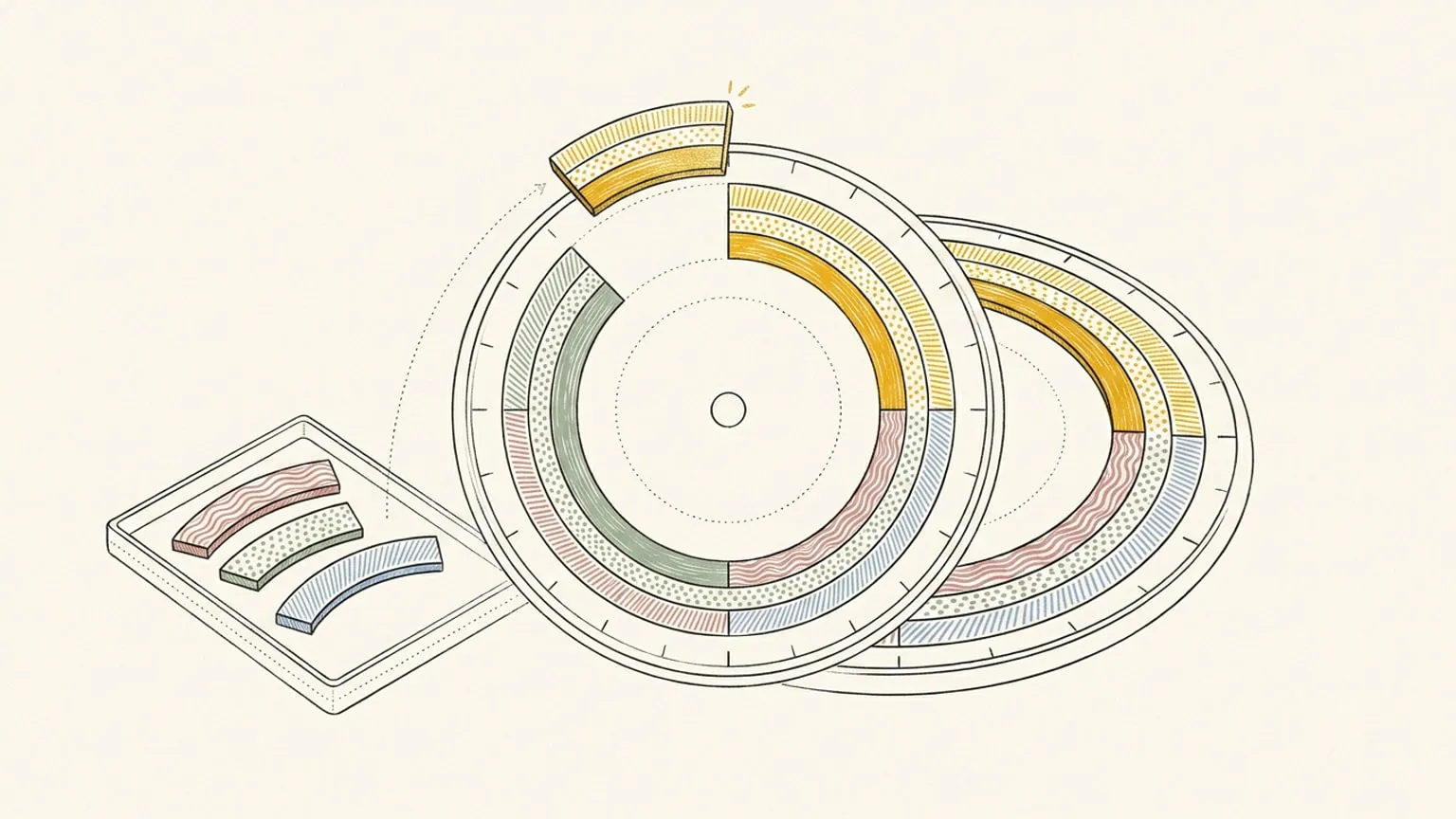
Some things you mean to do don't have a time yet. Reassign's Inbox is a tray of blocks with no time (off the clock, still sized and sorted) that you drag onto the 24-hour dial the moment there's room.

A calendar can only hold things that have a time. That is its discipline, and it is also its blind spot.
Because plenty of what you mean to do doesn’t have a when yet. The workout you’ll fit in somewhere this week. The call you owe a friend. The hour of deep work that needs to happen soon but not at any particular soon. On a calendar these have nowhere honest to live, so they become a zero-length smudge at 9am, or an all-day banner that means nothing, or, most often, a note in some other app that quietly rots. The plan pretends they’re scheduled, or it forgets them. Neither is true.
The dial has the same discipline: everything on it sits at a real hour. So it needs the same thing a calendar has always lacked, a place for the things that aren’t scheduled yet, that doesn’t lie about them being scheduled.
Not a to-do list
The temptation was to bolt a task list onto the side and call it done. We didn’t, because a task list answers a different question. “Reply to Sam” is a task: a line of text, no shape. What the dial is missing isn’t tasks, it’s blocks that haven’t landed.
So that’s what the Inbox holds. (It was called the Backlog until August 2026; the name changed, the tray did not.) An Inbox block already knows almost everything about itself: it’s thirty minutes, it’s Work, it’s the focused kind of energy. The only thing it hasn’t chosen is its hour. It’s a commitment that has decided everything except when, waiting for a slot to open. (The small to-dos, the checklist of reply to Sam, live inside a block, where they belong. The Inbox is for the blocks themselves.)
What we drew
A tray sits alongside the dial. Send a block to it and the block lets go of its time and waits there, off the clock but not out of sight. Drag one from the tray onto the ring and it takes that hour and becomes real again, a scheduled block like any other. The same block, round-tripping between waiting and placed as the day fills and clears.
Because an Inbox block keeps its area and its type, the tray isn’t a grey undifferentiated pile. Filter it by area, activity type, or the task app it came from, with more than one value in each filter, to see just the work you could pull in right now. Group it by date, integration, or type, or press B to open it as a full page, and a block you add without sorting gets filed into the right area for you. Collapse the sections you are not working from and they stay folded across your devices. Even off the clock, the Inbox reads in the same colours as the dial. You can fill it in bulk, too: a brain dump into ⌘K sends every timeless line straight to the tray.
Capture a list in one go
Type or say a line in Add to Inbox…, and AI splits it into up to 10 items. “Call the bank, book the dentist, groceries: milk and bread” can become three items, with the groceries kept together as microtasks. Notes and length estimates appear when there is enough detail; a planned day is set only when you name one. The Chrome extension can send selected text through the same capture flow.
Capture adds new items and leaves your existing blocks alone. If AI fails or refuses, the plain parser adds the line as one item. Each item waits for you to give it a place on the dial.
Bring your task lists with you
Google Tasks, Microsoft To Do and your assigned Linear issues arrive here with their due dates. Drag one onto the dial to choose its working time. Moving that block does not change the deadline in the source app. Check it off here and completion syncs back.
Todoist and TickTick also connect. Timed tasks arrive on the dial; tasks without a time wait in the Inbox. Undated imports are opt-in per list, team or project.
Use the Integration filter to see one source or all of them, alongside the area and activity type filters. A work queue and a personal list can share one Inbox without making you plan everything at once.
Send a captured item to your task app
Keep your capture and your task list together. Pick a connected task list as a new item’s Source, and saving creates a task there with its title, notes, and any planned day as the due date. This works with Todoist, TickTick, Google Tasks, Microsoft To Do, and Linear. Set Default sync to a task list to use it for new Inbox items.
You can also name a connected list in the quick-add: “Add to TickTick Home: buy medicine.” An AI capture with no matched list follows your default, so check the item’s Source if you mistyped the list name. To keep a new item local, choose Reassign only in its editor before saving. Changing an already linked item to Reassign only asks first, then deletes the task in its app and keeps the Inbox item. Linked Linear items keep their Source.
For Microsoft To Do, step text also syncs with the item’s microtasks while it waits in the Inbox. Ticks and order stay on their own side, and step syncing stops when the item moves onto the dial. The other task apps keep microtasks in Reassign. The Inbox docs explain what each app receives and how linked items behave.
It closes the loop with reflection
The Inbox earns its keep at the two ends of a day.
At the start, it’s where tomorrow’s maybes wait. At the end, it catches what slipped. When you look back on a day and mark a block Didn’t happen, Reassign doesn’t just record the miss, it offers to reschedule the block or drop it into the Inbox. So the run you skipped doesn’t evaporate and it doesn’t nag from the past; it waits, ready for the next open hour. Planning and reflection meet at the tray.
Why off the clock matters
The point of an Inbox block is that it is honestly unscheduled. That keeps the dial truthful, every arc on the ring is a real when you’ve actually chosen, not a placeholder you’ll move six times. And it keeps the intention alive, because a maybe that has a home stops competing with the plan for space it hasn’t earned. The day holds what’s committed. The Inbox holds what’s coming. Neither pretends to be the other.
Adding to the Inbox is part of Pro. Send it the things you mean to do, let them wait in their own colours, and pull them onto the dial the moment the day makes room, so nothing you intend is either forgotten or faked into a time it never had.
Frequently asked
- What is the Inbox in Reassign?
- The Inbox (called the Backlog until August 2026) is a tray of blocks with no time yet: things you mean to do that don't have a when. An Inbox block keeps its length, area, and activity type but has no place on the clock, so it waits off the dial until you drag it onto the ring and give it a when.
- Is the Inbox a to-do list?
- Not quite. A to-do list is a pile of tasks; the Inbox holds blocks, each one already sized and coloured: a commitment that has chosen everything except its time. In Reassign, small to-dos live as a checklist inside a block; the Inbox is for whole blocks you haven't scheduled yet.
- How do I add a block to the Inbox?
- Type or say a line in Add to Inbox, and AI splits it into up to 10 items. You can also send selected text from the Chrome extension, or choose Add to Inbox from a block's menu or a reflection. Drag an item onto the dial whenever there is room to give it a working time.
- Can I create a task in another app from the Inbox?
- Yes. Choose a Todoist project, TickTick list, Google Tasks list, Microsoft To Do list, or Linear team as a new item's Source, and Reassign creates the task there. Default sync to sets the Source for new items. A connected list named in quick-add can override that default. Choose Reassign only before saving a new item to keep it local.
- Is the Inbox free or Pro?
- The Inbox is included in Pro and the 7-day no-card trial, along with all other planner features. After trial or paid access ends, a subscription is required to use the planner; your saved data stays.
- What happens to a block I mark 'Didn't happen' when I reflect on a day?
- When you look back on a day and mark a block as didn't happen, Reassign offers to reschedule it or add it to the Inbox, so a missed intention waits there instead of vanishing, waiting for the next open slot.