Busy on the work calendar. The details stay with you.
Copy personal events to a Google or Outlook work calendar without their titles or notes. Compare Busy only with Private, including sharing limits.

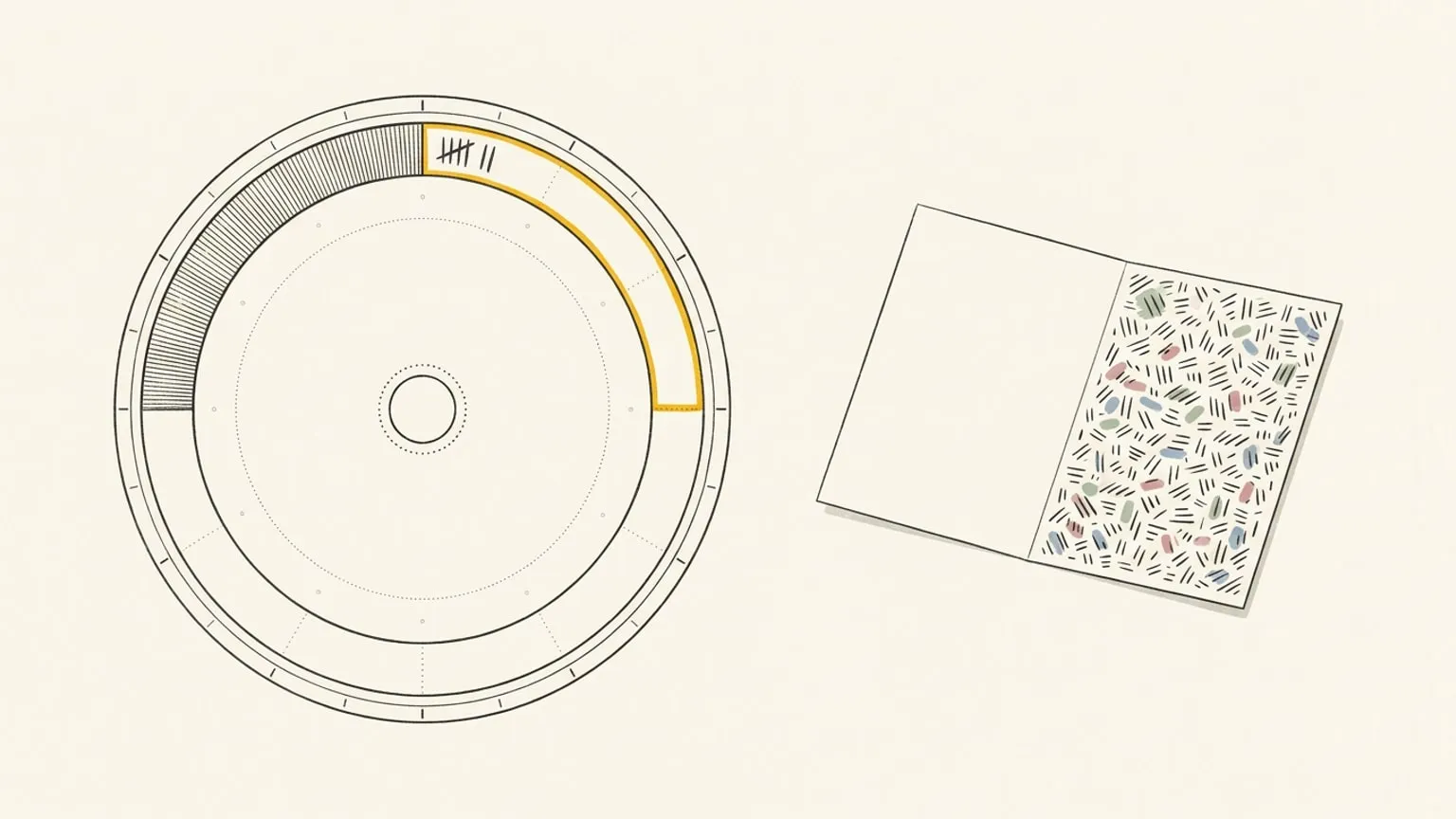
Your colleagues need to know you are busy at 3pm. They do not need to know it is a therapy session, a school pickup, or a call with another client. Reassign copies your personal events onto your work calendar in one of three styles: Full details, Private, or Busy only. Busy only puts a plain “Busy” block on the work calendar. The event on your personal calendar never changes.
This post covers the privacy part. For the basic setup, how a mirror decides which events to copy and what happens when you turn it off, read Copy events between calendars first.
Full details, Private, or Busy only: what each copy shows
Every copy, in every style, keeps the times. The style decides what else goes along.
| Full details | Private | Busy only | |
|---|---|---|---|
| Title on the copy | The event title | The event title | “Busy”, or your busy title |
| Notes on the copy | The event notes | The event notes | Empty |
| Visibility | The provider default | Private | Private |
| Shows as busy or free | Busy | Busy if the event blocks time, else free | Same as Private |
| Reminders | Provider default (on Outlook, they stay off after Busy only) | Same as Full details | Off |
| Location, attendees, colour | Not copied | Not copied | Not copied |
The app gives each choice one line of help. Private: “The provider hides the details from people you share the calendar with.” Busy only: “Others see only ‘Busy’. The title and notes stay hidden.”
When to use each style
- Full details. The target is your own calendar, or a calendar where the title helps. Example: copy client calls onto a personal calendar so your partner sees “Client call” and does not book dinner on top of it.
- Private. You want the real title on the copy for yourself, but the people you share the calendar with should not read it. Google Calendar marks the copy private. Outlook marks it with private sensitivity. Each provider then applies its own sharing rules.
- Busy only. The title itself must not reach the target. A medical appointment, a job interview, a second client. The copy says “Busy” and nothing else.
Private and Busy only both mark the copy private. The difference is what the copy holds. A Private copy still contains the real title, and the owner of the target calendar sees it. A Busy only copy never contains it.
How to sync a personal calendar to a work calendar as busy
- Connect both calendars, Google Calendar or Outlook. You can mix them: personal on Google, work on Outlook.
- Open the work calendar’s settings. Under Copies on this calendar, choose Busy only.
- Optional: set Title of busy copies, for example “Personal” or “Out”. Leave it empty and copies say “Busy”.
- Open the personal calendar’s settings. Set Mirror events to Always mirror, or Let AI choose with a rule, and pick the work calendar under To calendar.
New events that arrive after you enable the rule get copies when they match it. Always mirror copies every eligible new event; Let AI choose copies only clear matches and requires AI sync to be on. All-day events are excluded. Existing events are not copied retroactively: open an existing block and add the work calendar in its mirror menu. A Private or Busy only copy of a non-blocking or reference event shows as free.
The setting in step 2 belongs to the target. Copies without a per-event style use that calendar’s default. Change the default and those copies update in place; an event’s explicit style still wins. Check What each copy shows on any event you previously set to Full details before relying on a Busy only default. Changing a copy does not retract details someone already saw.
Pick a style for one event
A calendar default covers most events. Some events need a different answer.
Open the event and use its mirror menu. The button reads Mirror to calendars… when no calendar is picked yet, and Mirror to plus the calendar name after that. Under the list of calendars is What each copy shows, with one submenu for each target you picked. The option that matches the calendar default carries a “Default” tag. The button shows a lock or a crossed eye, so you can see the most hidden style at a glance.
The order that wins:
- The event’s own style for that target.
- The target calendar’s default.
- Full details.
You can set a style in the event editor, the card editor, the edit-mode picker, and on several selected cards at once. If the selected events disagree, the menu shows “Mixed”. The Inbox does not offer copy styles.
Two limits. A recurring series has one style per target, so one occurrence cannot have its own style. And the busy title belongs to the target calendar, not to the event.
Block time on the work calendar from the dial
Some blocks never belong on any calendar. A run, a nap, a hard stop for the evening. In Reassign, a block can live only on the dial, with no home calendar.
A one-off dial block can now get copies too. Keep “Physio” on the dial, and put a “Busy” copy on your work calendar. Colleagues see the hour as taken. With the work calendar set to Busy only, the title stays on the dial.
This works only for a block that does not repeat. A repeating block with copies needs a home calendar first.
What colleagues see in Google Calendar and Outlook
Copy targets are Google Calendar and Outlook. Reassign writes the copy, and the provider decides who sees what:
- Busy only. The copy stores “Busy”, or your busy title, with empty notes. Its original title and notes are absent. Calendar permissions decide whether another person sees the neutral title or just a busy interval.
- Private. The copy keeps the real title and notes. Google’s visibility rules let people with event-editing access or higher see private details. Outlook delegates can see them if you grant access to private items. The calendar owner can see them too.
- Full details. The copy stores the title and notes with the provider’s default visibility. People with permission to read event details can see them; free/busy-only access does not reveal them.
In all three styles, the copy carries no location, no attendees, and no colour. Outlook would send invitations to attendees, so a copy never has them.
The honest limits
- Private is not a guarantee. Private relies on the provider’s sharing rules. When the title must not exist on the target calendar, use Busy only.
- Some copies show as free. A Private or Busy only copy of an event that does not block time, such as a reference event, shows as free time.
- Outlook reminders stay off. Switch a copy from Busy only back to Full details and Outlook keeps reminders off, because Outlook has no default to restore. Google restores its default reminders.
- Targets are calendars. Todoist, TickTick, and other task apps are never a copy target.
- A copy is still one-way. Edit the copy on the work calendar and the source does not change. A style changes only the copy. The event at the source never changes.
Copies are also marked, so Reassign does not import them back as new events.
Set it from Claude or ChatGPT
Connected over MCP, an assistant can set a style per event. write_events takes mirrorStyles, a map from calendar id to full, private, or busy. Each id must be in the event’s mirrorCalendarIds. An update replaces the whole map; {} clears the overrides so the calendar defaults apply again. For a recurring event, styles apply to the whole series. get_schedule shows each writable event calendar’s default copy style. Calendar defaults stay in the app: MCP cannot change them.
Then look at the whole day
The work calendar now says “Busy”. The dial still tells you the truth: every calendar on one 24-hour ring, each in its own colour, the physio block next to the standup. How two-way calendar sync works →
Copy styles are included in Pro: $14/month or $120/year. Start your 7-day trial, connect your work and personal calendars, and set the work calendar to Busy only. No card required. No automatic charge.
Frequently asked
- How do I show as busy on my work calendar without sharing personal details?
- In Reassign, mirror your personal calendar onto your work calendar, then set the work calendar's copy style to Busy only. Each copy gets the title Busy, or your own busy title, empty notes, and private visibility. The event on your personal calendar does not change. Copy targets are Google Calendar and Outlook.
- What is the difference between Private and Busy only?
- A Private copy keeps the real title and notes. Who can read them depends on the target calendar's permissions: its owner, Google calendar editors, and Outlook delegates allowed to view private items can still see them. A Busy only copy replaces the title with Busy, or your own busy title, and leaves the notes empty. Use Busy only when the original details must not reach the work calendar.
- Can I change the title of busy copies?
- Yes, per target calendar. In that calendar's settings, choose Busy only under Copies on this calendar, then set Title of busy copies, for example Personal or Out. The field shows only when Busy only is the default. The limit is 100 characters. Leave it empty and copies say Busy. One event cannot have its own busy title.
- Can one event use a different style from the rest of the calendar?
- Yes. Open the event's mirror menu (Mirror to calendars… when no calendar is picked yet) and pick a style for each target under What each copy shows. The event's own choice wins, then the target calendar's default, then Full details. A recurring series has one style per target, not one per occurrence.
- Does a busy copy include the location or the attendees?
- No. A copy never carries location, attendees, or colour, in any style. Copies of events that do not block time, such as a reference event, show as free in the Private and Busy only styles.
- If I switch a copy from Busy only back to Full details, what comes back?
- The title, the notes, the visibility, and busy or free come back. On Google, the default reminders come back too. On Outlook, reminders stay off, because Outlook has no default value to restore. Copy styles are included in Pro at $14 a month or $120 a year, with a 7-day trial and no card.