Give your Google Tasks time in the day
Reassign now syncs two-way with Google Tasks. Each dated task lands in your Inbox with its due date; drag it onto the 24-hour dial to give it an hour.

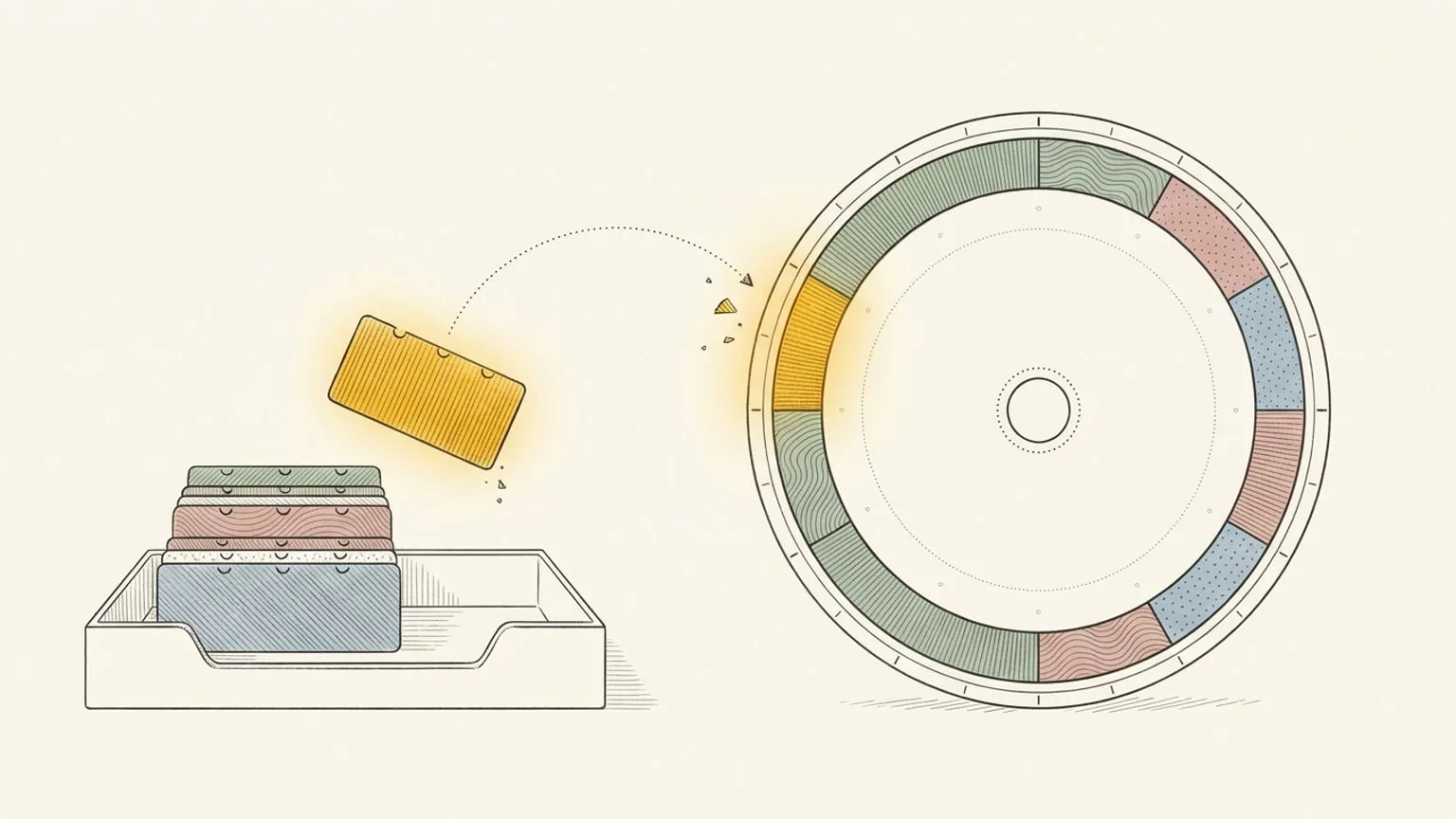
A task due Friday still needs time before Friday. Connect Google Tasks to Reassign, pull it into your Inbox, and drag out 45 minutes between your meetings. Finish the block and the task is done in Google too.
Keep your lists. Give the work a place in your day.
Connect the lists you actually use
Open Integrations, connect Google Tasks, and choose your lists. Dated tasks arrive in your Inbox, grouped by due date. Turn on undated imports for each list you want to include. Your someday list can stay in Google.
Use the Inbox’s Integration filter to show just Google Tasks, or see tasks from all your connected apps together. Area and activity type filters help narrow the list further.
Plan the work without moving the deadline
Say “Send the proposal” is due Friday. Drag it onto Wednesday at 10 and resize it to 45 minutes. If Wednesday fills up, move the block to Thursday. The Friday deadline stays put.
Reassign keeps your planned day, start time and duration separate from the task’s due date. Changing the due date in Google updates the deadline here without moving the block you scheduled. You can also edit or clear the synced due date from the Inbox.
One limit matters: Google’s Tasks API shares due dates, but not due times. A time you set in Google does not come across through this connection. The hour you choose in Reassign stays here.
Complete it once
Titles, plain-text notes, due dates and completion sync both ways. Check the task off in either app and the other follows. Remove a linked block from your day and the task returns to the Inbox with its deadline intact.
Sync runs every few minutes. Use Sync now on the source card when you want to pull in a change.
Subtasks do not sync. Recurrence and reminder settings stay in Google; a repeating block in Reassign does not create a repeating Google task. Disconnecting stops sync and keeps imported tasks. Deleting the connected source removes its linked imports from Reassign without deleting your Google tasks.
Put tasks beside your meetings
Google Calendar connects separately. Use both to see your meetings and the work between them on the same 24-hour dial. Your team keeps using its calendar; you can see whether the proposal actually fits before lunch.
Still deciding if you need a planner beside Google Tasks at all? Read Reassign vs Google Tasks.
Google Tasks sync is included in Pro: $14/month or $120/year. Start your 7-day trial, connect one list, and give tomorrow’s most important task a slot. No card required. No automatic charge.
Frequently asked
- Does Reassign sync with Google Tasks?
- Yes, two-way. Titles, notes, due dates and completion move both ways. This connection syncs due dates, so a dated task lands in your Inbox with its due date; drag it onto the 24-hour dial to give it a time.
- What happens to a Google task with no date?
- Undated tasks import from the lists you opt in, one list at a time, and wait in your Inbox with no time yet. Drag one onto the dial when you are ready to give it an hour.
- Does the time I set sync back to Google Tasks?
- No. The Google Tasks API shares due dates, not due times. The exact time and duration live in Reassign; the due date and the done state flow back to Google.
- If I complete a Google task, does it update in both places?
- Yes. Check it off on the dial and it closes in Google Tasks; complete it in Google and it shows as done on the dial. It stays one task wherever you finish it.
- What happens to my tasks if I disconnect Google Tasks?
- Disconnecting stops sync and keeps imported tasks. Delete the connected source to remove its linked imports from Reassign. Nothing is deleted in Google Tasks, and you can also revoke Reassign from your Google account.