Give your Apple Calendar a whole-day view.
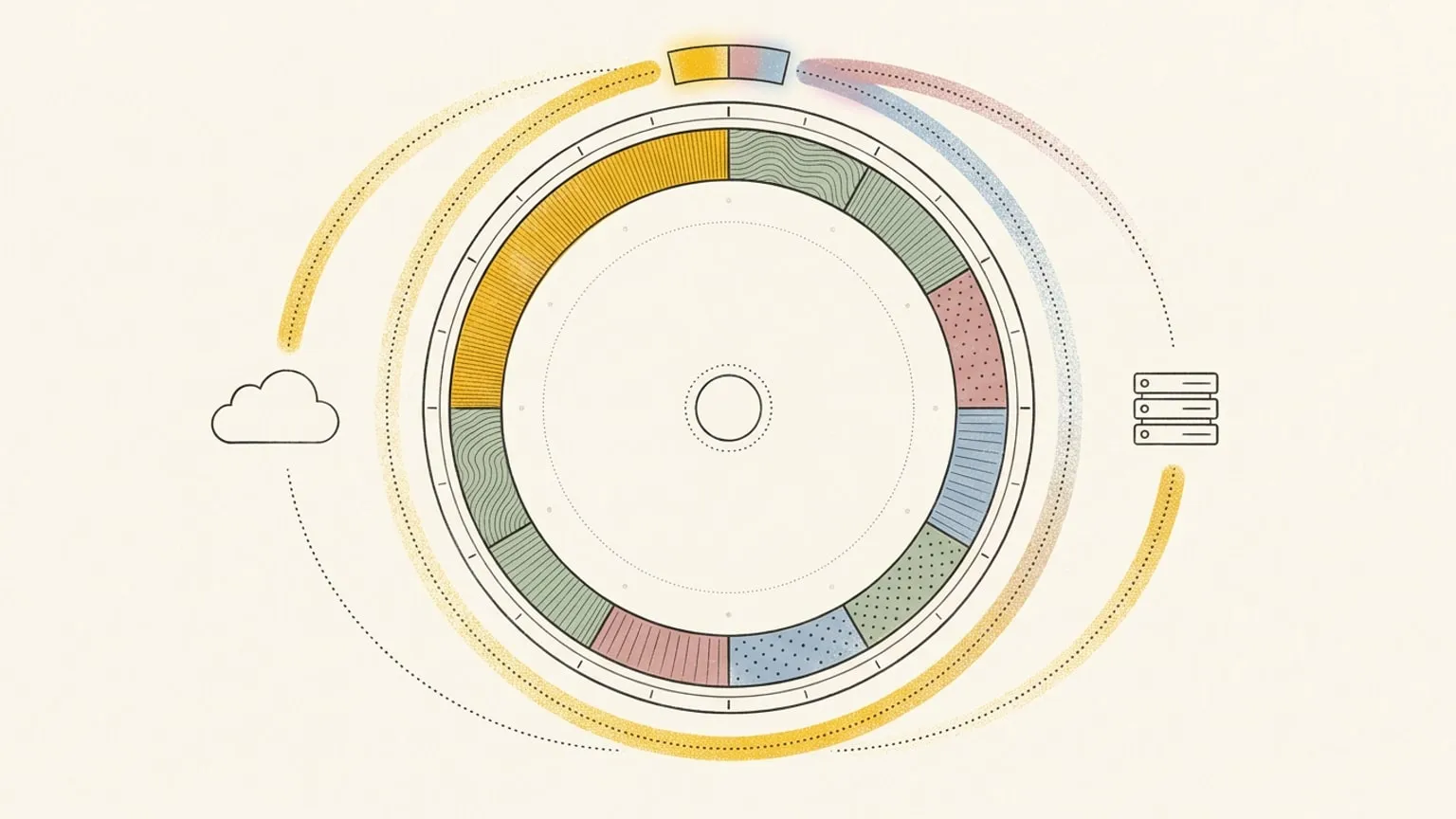
Bring your iCloud events onto a 24-hour dial. See the gaps between appointments, give your tasks an hour, and move a block when plans change. Edits sync back to your calendar. Fastmail, Nextcloud and other compatible CalDAV calendars connect too.
Included in Pro and the 14-day no-card trial.
Your work calendar and your evening, together
A work call in Outlook, school pickup in iCloud, a task waiting in your Inbox. Put them on one dial and see whether an hour of work fits before you leave. Each calendar keeps its events. Choose which calendars appear, and sort their blocks into your areas by AI or one fixed area per calendar.
Move it here. See it in Apple Calendar.
Drag a writable event to a new time, resize it, or rename it. The change goes back to its calendar and appears in your other calendar apps. New blocks use the calendar you choose under New events go to. For a repeating event, edit one occurrence, this and following, or the whole series. Attendees, alarms and other event details are preserved when you edit it.
Show work that you are busy
Copy an iCloud appointment onto your work calendar as Busy only. The copy holds the time with a neutral title and empty notes; the original keeps its details. Copies work between connected Google, Outlook and CalDAV calendars. Private keeps the real title and notes and relies on the target calendar’s sharing rules. Use Busy only when those details must stay off the target. See what each copy style shares.
Connect with an app password
Choose iCloud and CalDAV in Integrations, then your provider and calendars. For iCloud, use your Apple ID email and an app-specific password; Apple requires two-factor authentication to create one. Fastmail and Nextcloud also offer app passwords. You can revoke that password at your provider to end access. The setup guide covers each connection, and the Apple Calendar guide walks through iCloud step by step.
Know what sync changes
Reassign checks for calendar changes about every 10 minutes. Use Sync now on the source card to pull a change sooner. Your edits from Reassign go out right away. Custom servers need a public https:// address on port 443 or 8443; a server reachable only on your home network cannot connect.
Editing or deleting a synced event changes it on the server too. If it has attendees, your server may email them an update, including when an AI assistant makes the edit. Calendars without write access are read-only. Disconnecting stops sync and keeps imported items. Deleting the source removes its linked imports from Reassign without deleting the original events on your server. Reassign stores your app password encrypted and keeps synced event files to preserve their other details during edits.
This page is the what and the why. For the step by step, the docs cover the same ground as instructions: iCloud and CalDAV sync in the docs →
Questions
- Does Reassign work with Apple Calendar?
- Yes, for calendars stored in iCloud. Connect with your Apple ID email and an app-specific password, then use Reassign in a browser on Mac, Windows, iPhone or Android. Apple Calendar can also show Google, Outlook and local calendars. Connect Google or Outlook separately; calendars stored only on your device do not sync through iCloud.
- Which CalDAV servers work?
- Choose the iCloud, Fastmail or Nextcloud preset, or Other CalDAV server for a compatible service. Custom servers need a public https:// address on port 443 or 8443, your user name and a password, preferably an app password. Calendar access and supported features depend on the server.
- How quickly does it sync?
- Your edits in Reassign go to the server right away. Reassign checks for changes made in other apps about every 10 minutes. Use Sync now to pull them sooner.
- Does this sync Apple Reminders too?
- No. This connection syncs calendar events, not Apple Reminders. For task sync, connect Todoist, TickTick, Google Tasks, Microsoft To Do or Linear.
- Is CalDAV sync free?
- No, it is Pro, at $8.99 a month or $69.99 a year, like Google Calendar and Outlook sync. The 14-day Pro trial needs no card.
Try it on today.
14 days of Pro. No card required. No automatic charge.